<!DOCTYPE html>
	<html lang="vi" xmlns="http://www.w3.org/1999/xhtml" prefix="og: http://ogp.me/ns#">
	<head>
<title>FTP Server trên Windows 10</title>
<meta name="description" content="FTP Server trên Windows 10 - Savefile - Tin Tức - https&#x3A;&#x002F;&#x002F;phanmemthienha.com&#x002F;news&#x002F;savefile&#x002F;huong-dan-phan-mem&#x002F;ftp-server-tren-windows-10-198.html">
<meta name="author" content="PHAN MEM THIEN HA">
<meta name="copyright" content="PHAN MEM THIEN HA [phamhuy842005@gmail.com]">
<meta name="robots" content="index, archive, follow, noodp">
<meta name="googlebot" content="index,archive,follow,noodp">
<meta name="msnbot" content="all,index,follow">
<meta name="generator" content="NukeViet v4.0">
<meta name="viewport" content="width=device-width, initial-scale=1">
<meta http-equiv="Content-Type" content="text/html; charset=utf-8">
<meta property="og:title" content="FTP Server trên Windows 10">
<meta property="og:type" content="website">
<meta property="og:description" content="Savefile - Tin Tức - https&#x3A;&#x002F;&#x002F;phanmemthienha.com&#x002F;news&#x002F;savefile&#x002F;huong-dan-phan-mem&#x002F;ftp-server-tren-windows-10-198.html">
<meta property="og:site_name" content="PHAN MEM THIEN HA">
<meta property="og:url" content="https://phanmemthienha.com/news/huong-dan-phan-mem/ftp-server-tren-windows-10-198.html">
<link rel="shortcut icon" href="https://phanmemthienha.com/uploads/logo-shop-thien-ha-5.png">
<link rel="canonical" href="https://phanmemthienha.com/news/huong-dan-phan-mem/ftp-server-tren-windows-10-198.html">
<link rel="alternate" href="https://phanmemthienha.com/news/rss/" title="Tin Tức" type="application/rss+xml">
<link rel="alternate" href="https://phanmemthienha.com/news/rss/huong-dan-phan-mem/" title="Tin Tức - Hướng dẫn phần mềm" type="application/rss+xml">
<link rel="alternate" href="https://phanmemthienha.com/news/rss/huong-dan-noi-bo/" title="Tin Tức - Hướng dẫn nội bộ" type="application/rss+xml">
<link rel="alternate" href="https://phanmemthienha.com/news/rss/Doi-tac/" title="Tin Tức - Đối tác" type="application/rss+xml">
<link rel="alternate" href="https://phanmemthienha.com/news/rss/Tuyen-dung/" title="Tin Tức - Tuyển dụng" type="application/rss+xml">
<link rel="preload" as="script" href="https://phanmemthienha.com/assets/js/jquery/jquery.min.js">
<link rel="preload" as="script" href="https://phanmemthienha.com/assets/js/language/vi.js">
<link rel="preload" as="script" href="https://phanmemthienha.com/assets/js/global.js">
<link rel="preload" as="script" href="https://phanmemthienha.com/themes/default/js/news.js">
<link rel="preload" as="script" href="https://phanmemthienha.com/themes/popovleather/js/main.js">
<link rel="preload" as="script" href="https://phanmemthienha.com/themes/popovleather/js/bootstrap.min.js">
<link rel="StyleSheet" href="https://phanmemthienha.com/assets/css/font-awesome.min.css">
<link rel="StyleSheet" href="https://phanmemthienha.com/themes/popovleather/css/bootstrap.min.css">
<link rel="StyleSheet" href="https://phanmemthienha.com/themes/popovleather/css/style.css">
<link rel="StyleSheet" href="https://phanmemthienha.com/themes/popovleather/css/style.responsive.css">
<link rel="StyleSheet" href="https://phanmemthienha.com/themes/default/css/news.css">
<link rel="StyleSheet" href="https://phanmemthienha.com/assets/css/popovleather.vi.0.css?t=87">
<style>
	body{background: #fff;}
</style>
	</head>
	<body>
<div id="print">
	<div id="hd_print">
		<h2 class="pull-left">PHAN MEM THIEN HA</h2>
		<p class="pull-right"><a title="PHAN MEM THIEN HA" href="https://phanmemthienha.com/">https://phanmemthienha.com</a></p>
	</div>
	<div class="clear"></div>
	<hr />
	<div id="content">
		<h1>FTP Server trên Windows 10</h1>
		<ul class="list-inline">
			<li>Thứ hai - 20/03/2023 22:38</li>
			<li class="hidden-print txtrequired"><em class="fa fa-print">&nbsp;</em><a title="In ra" href="javascript:;" onclick="window.print()">In ra</a></li>
			<li class="hidden-print txtrequired"><em class="fa fa-power-off">&nbsp;</em><a title="Đóng cửa sổ này" href="javascript:;" onclick="window.close()">Đóng cửa sổ này</a></li>
		</ul>
		<div class="clear"></div>
		<div id="hometext">
			Nếu muốn tạo một đám mây riêng để chia sẻ và chuyển đổi các file có lưu lượng lớn mà không bị giới hạn, bạn có thể tạo một FTP Server (File Transfer Protocol Server) trên máy tính Windows 10 của mình.
		</div>
				<div class="imghome">
			<img alt="FTP Server trên Windows 10" src="https://phanmemthienha.com/uploads/news/2023_03/turn-windows-features-on-or-off.jpg" width="460" class="img-thumbnail" />
		</div>
		<div class="clear"></div>
		<div id="bodytext" class="clearfix">
			<h2>1. Cài đặt FTP Server trên Windows 10</h2>

<p>Tương tự như trên các phiên bản trước, trên Windows 10 cũng được tích hợp các yếu tố cần thiết để chạy FTP Server. Thực hiện các bước dưới đây để cài đặt FTP Server trên máy tính Windows 10 của bạn:</p>

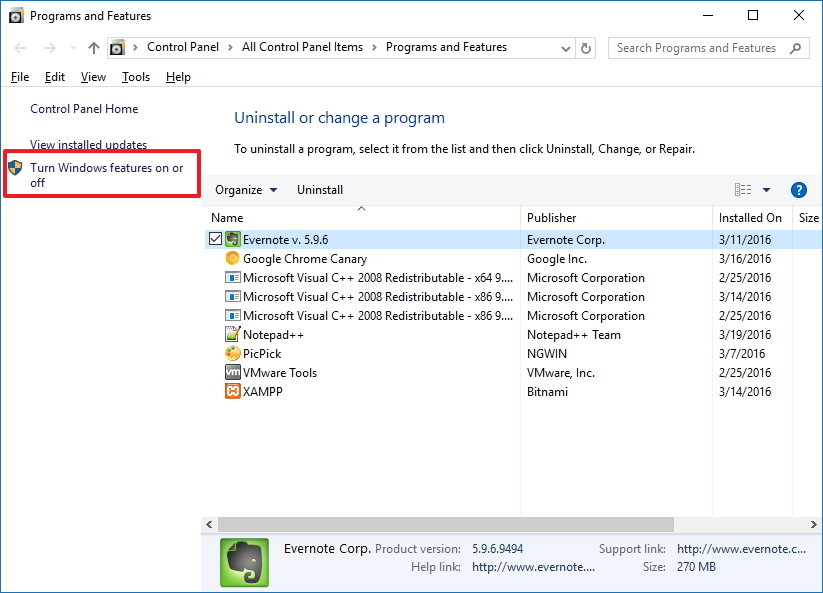
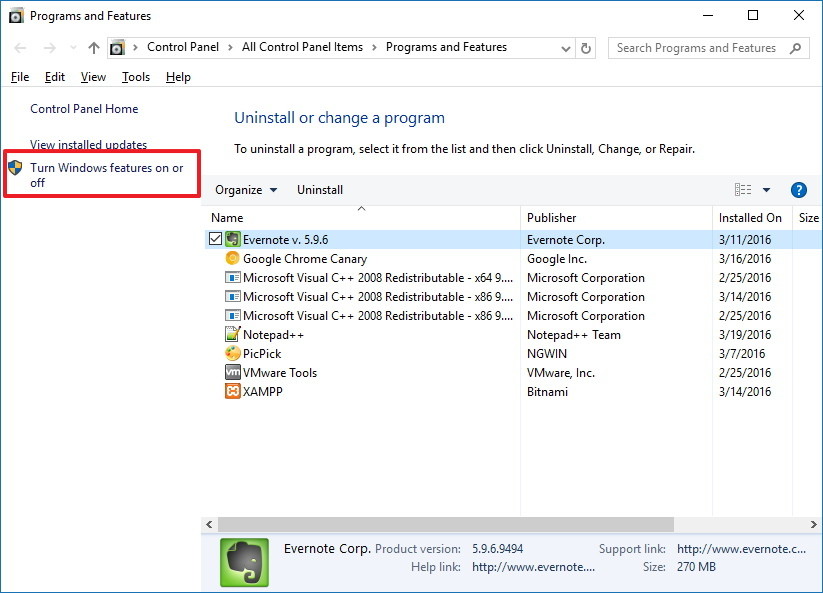
<p>1. Nhấn tổ hợp phím<strong>&nbsp;Windows + X</strong>&nbsp;để mở Menu Power rồi chọn&nbsp;<strong>Programs and Features</strong>.</p>

<p>2. Click chọn liên kết<strong>&nbsp;Turn Windows features on or off</strong>.</p>

<p><img alt="Turn Windows features on or off" data-adbro-processed="true" data-i="1" data-src="https://st.quantrimang.com/photos/image/2016/03/31/Turn-Windows-features-on-or-off.jpg" data-was-processed="true" height="593" src="https://phanmemthienha.com/uploads/news/2023_03/turn-windows-features-on-or-off.jpg" title=" Turn Windows features on or off" width="823" /><br  />
&nbsp;</p>

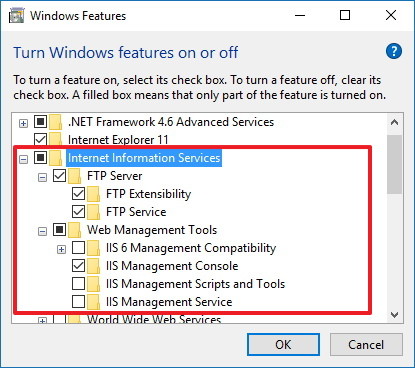
<p>3. Mở rộng Internet Information Services sau đó đánh tích vào tùy chọn&nbsp;<strong>FTP Server</strong>.</p>

<p>4. Mở rộng FTP Server rồi đánh tích chọn<strong>&nbsp;FTP Extensibility</strong>.</p>

<p>5. Đánh tích chọn&nbsp;<strong>Web Management Tools</strong>&nbsp;với các tùy chọn mặc định.</p>

<p>6. Click chọn&nbsp;<strong>OK</strong>&nbsp;để bắt đầu cài đặt.</p>

<p><img alt="click ok" data-i="2" data-src="https://st.quantrimang.com/photos/image/2016/03/31/click-ok.jpg" data-was-processed="true" height="368" src="https://phanmemthienha.com/uploads/news/2023_03/click-ok.jpg" title="chọn OK " width="415" /></p>

<p>7. Click chọn<strong>&nbsp;Close</strong>.</p>

<h2>2. Cấu hình FTP site trên Windows 10</h2>

<p>Sau khi đã cài đặt các yếu tố cần thiết để chạy FTP Server trên máy tính Windows 10 của bạn, tiếp theo tiến hành tạo một FTP site:</p>

<p>1. Nhấn tổ hợp phím&nbsp;<strong>Windows + X</strong>&nbsp;để mở menu Power User rồi chọn&nbsp;<strong>Control Panel.</strong></p>

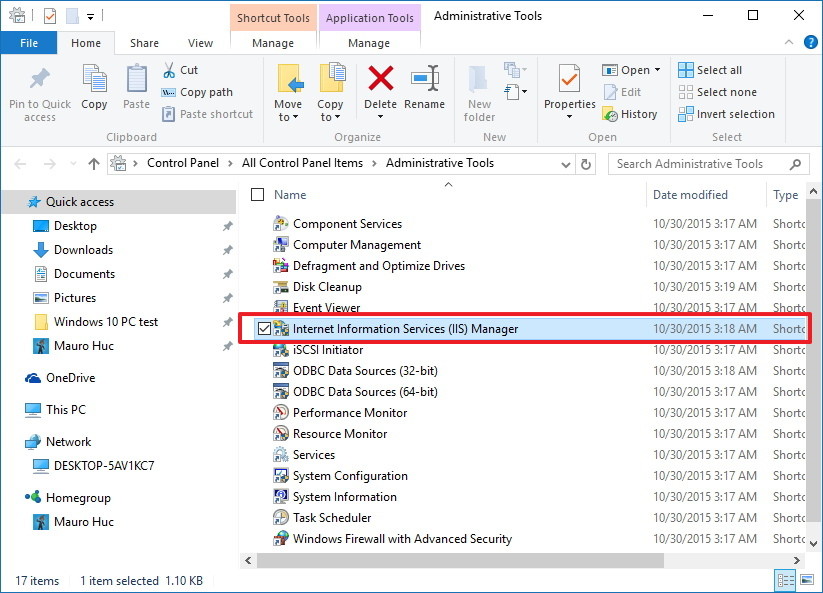
<p>2. Mở&nbsp;<strong>Administrative Tools</strong>.</p>

<p>3. Kích đúp chuột vào<strong>&nbsp;Internet Information Services (IIS) Manager</strong>.</p>

<p><img alt="Internet Information services IIS Manager" data-i="3" data-src="https://st.quantrimang.com/photos/image/2016/03/31/Internet-Information-services-IIS-Manager.jpg" data-was-processed="true" height="593" src="https://phanmemthienha.com/uploads/news/2023_03/internet-information-services-iis-manager.jpg" title="Internet Information Services (IIS) Manager" width="823" /></p>

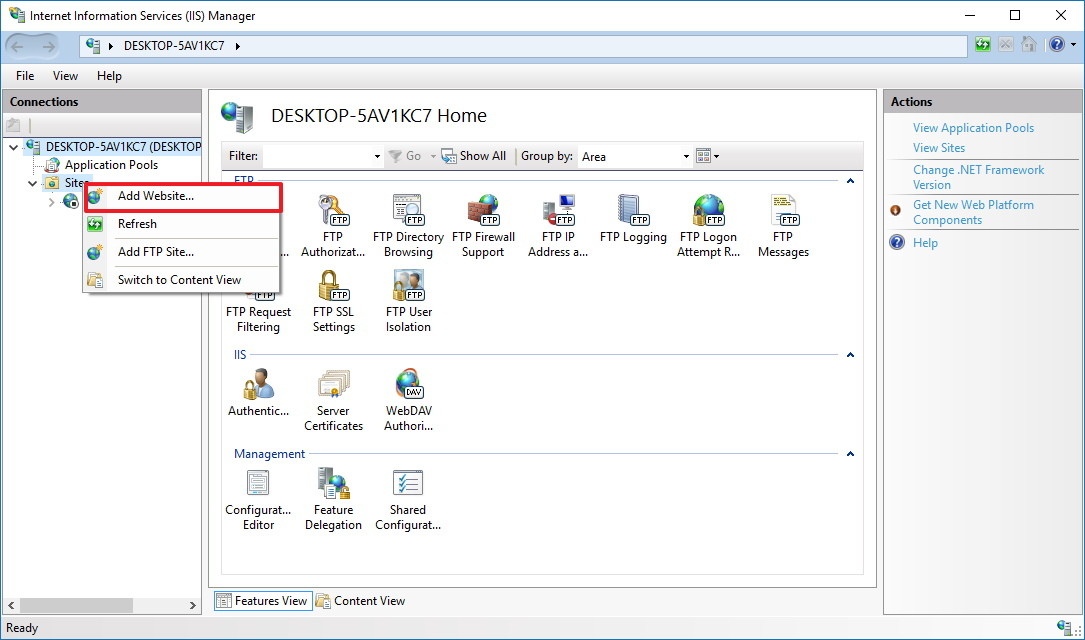
<p>4. Mở rộng bảng Connection rồi kích chuột phải vào<strong>&nbsp;Site.</strong></p>

<p>5. Chọn<strong>&nbsp;Add FTP Site</strong>.</p>

<p><img alt="Add FTP Site" data-i="4" data-src="https://st.quantrimang.com/photos/image/2016/03/31/Add-FTP-Site.jpg" data-was-processed="true" height="640" src="https://phanmemthienha.com/uploads/news/2023_03/add-ftp-site.jpg" title=" Add FPT Site" width="1085" /></p>

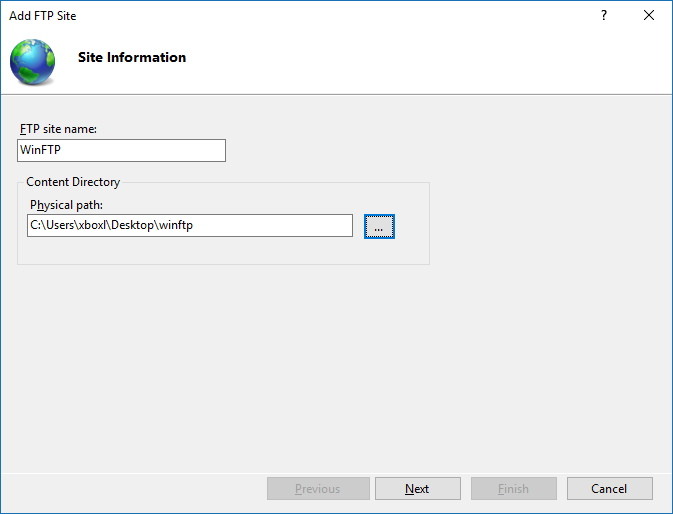
<p>6. Đặt tên cho FTP site mới của bạn rồi nhập đường dẫn đến thư mục FTP mà bạn muốn sử dụng để gửi và nhận các file.</p>

<p><strong>Lưu ý:</strong></p>

<p>Bạn có thể sử dụng nút Make New Folder để tạo một thư mục cụ thể chứa file FTP.</p>

<p>7. Click chọn&nbsp;<strong>Next</strong>.</p>

<p><img alt="chon next" data-i="5" data-src="https://st.quantrimang.com/photos/image/2016/03/31/chon-next.jpg" data-was-processed="true" height="514" src="https://phanmemthienha.com/uploads/news/2023_03/chon-next.jpg" title="chọn Next" width="673" /></p>

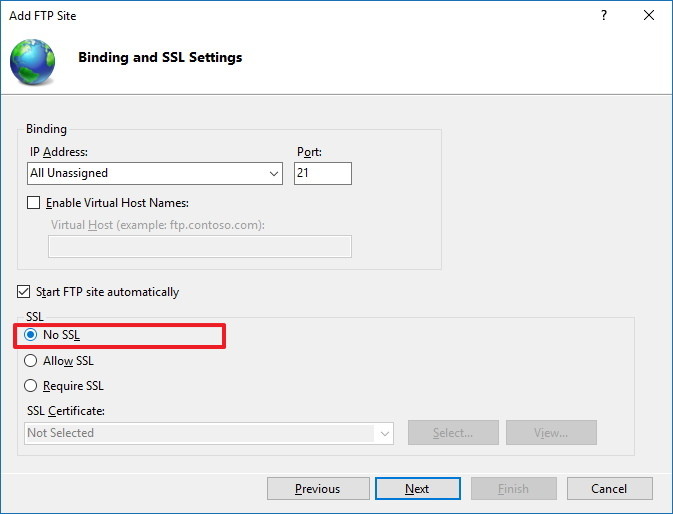
<p>8. Trên giao diện Binding and SSL Settings, bỏ tất cả các thiết lập mặc định, thay đổi tùy chọn<strong>&nbsp;SSL</strong>&nbsp;thành&nbsp;<strong>No SSL</strong>.</p>

<p>9. Click chọn<strong>&nbsp;Next.</strong></p>

<p><strong><img alt="no ssl" data-i="6" data-src="https://st.quantrimang.com/photos/image/2016/03/31/no-ssl.jpg" data-was-processed="true" height="514" src="https://phanmemthienha.com/uploads/news/2023_03/no-ssl.jpg" title="chọn Next" width="673" /></strong></p>

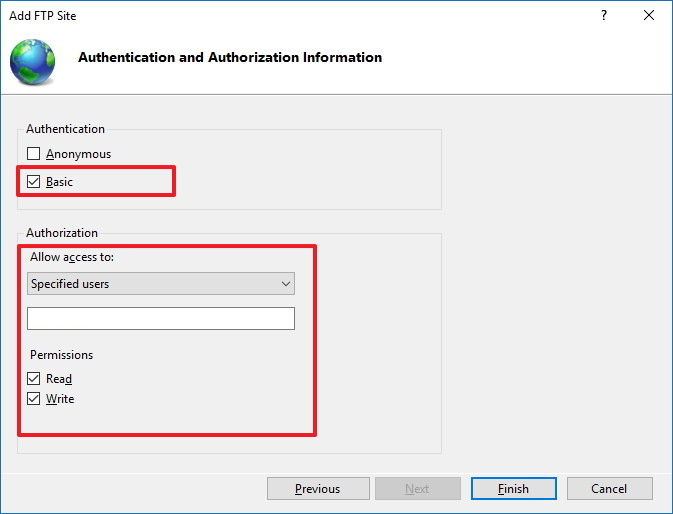
<p>10. Tại mục Authentication, đánh tích chọn tùy chọn<strong>&nbsp;Basic.</strong></p>

<p>11. Tại mục Authorization chọn&nbsp;<strong>Specified users</strong>&nbsp;từ menu drop-down.</p>

<p>12. Nhập địa chỉ email tài khoản Windows 10 hoặc tên tài khoản Local cho phép bạn truy cập FTP Server.</p>

<p>13. Đánh tích chọn tùy chọn<strong>&nbsp;Read</strong>&nbsp;và&nbsp;<strong>Write.</strong></p>

<p>14. Click chọn<strong>&nbsp;Finish.</strong></p>

<p><strong><img alt="finissh" data-i="7" data-src="https://st.quantrimang.com/photos/image/2016/03/31/finissh.jpg" data-was-processed="true" height="514" src="https://phanmemthienha.com/uploads/news/2023_03/finissh.jpg" title=" chọn Finish" width="673" /></strong><br  />
<br  />
<img alt="" height="200" src="https://phanmemthienha.com/uploads/news/2023_03/image.png" width="646" /></p>

<h2>3. Làm thế nào để cho phép FTP Server thông qua Windows Firewall (tưởng lửa)?</h2>

<p>Nếu Windows Firewall (tường lửa) đang hoạt động trên máy tính của bạn, Firewall sẽ chặn bất kỳ một kết nối nào đang cố gắng truy cập FTP Server.</p>

<p>Thực hiện các bước dưới đây để cho phép FTP Server thông qua Firewall (tường lửa):</p>

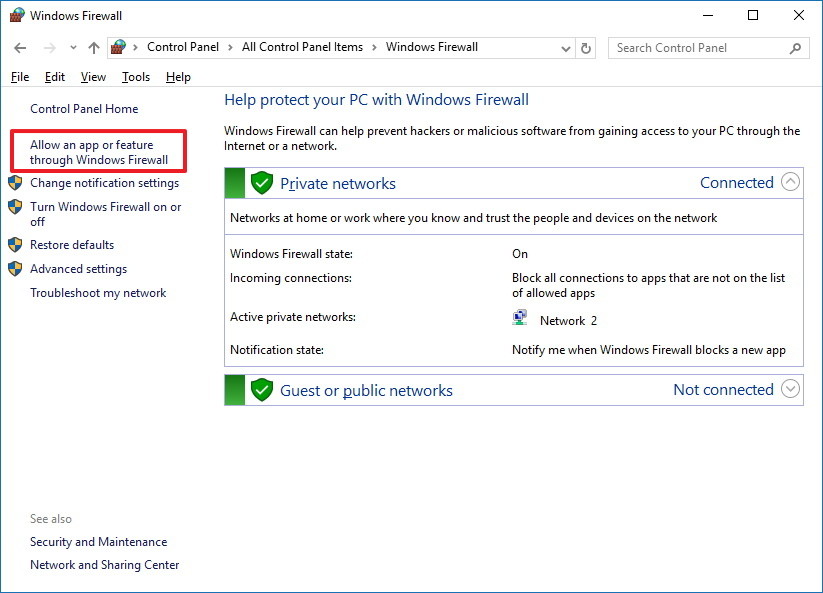
<p>1. Mở Start Menu, sau đó nhập Windows Firewall và khung Search rồi nhấn Enter.</p>

<p>2. Click chọn liên kết&nbsp;<strong>Allow an app or feature through Windows Firewall</strong>.</p>

<p><img alt="Allow an app or feature through Windows Firewall" data-i="8" data-src="https://st.quantrimang.com/photos/image/2016/03/31/Allow-an-app-or-feature-through-Windows-Firewall.jpg" data-was-processed="true" height="593" src="https://phanmemthienha.com/uploads/news/2023_03/allow-an-app-or-feature-through-windows-firewall.jpg" title="Allow an app or feature through Windows Firewall" width="823" /></p>

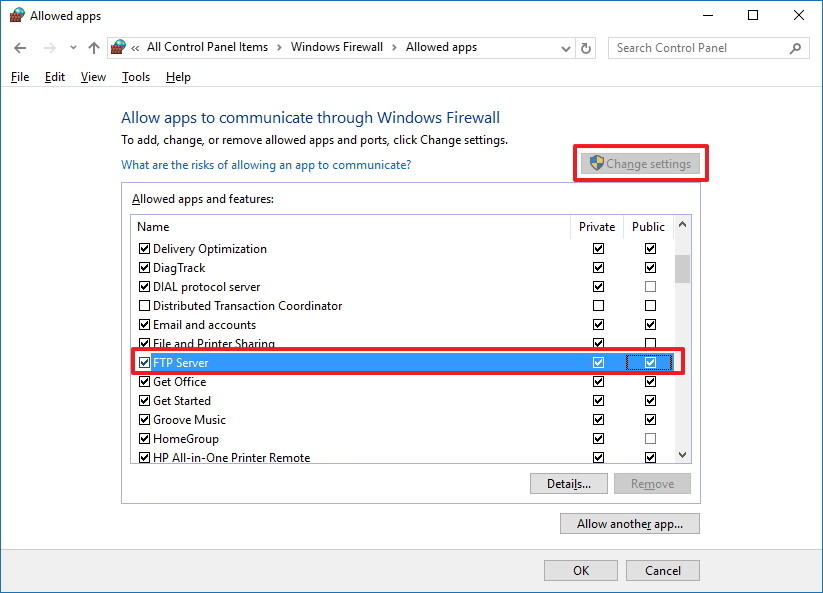
<p>3. Click chọn<strong>&nbsp;Change Settings</strong>.</p>

<p>4. Chọn&nbsp;<strong>FTP Server</strong>&nbsp;và đánh tích vào cả 2 tùy chọn&nbsp;<strong>Private</strong>&nbsp;và&nbsp;<strong>Public</strong>.</p>

<p>5. Click chọn&nbsp;<strong>OK.</strong></p>

<p><strong><img alt="change setting" data-i="9" data-src="https://st.quantrimang.com/photos/image/2016/03/31/change-setting.jpg" data-was-processed="true" height="593" src="https://phanmemthienha.com/uploads/news/2023_03/change-setting.jpg" title="Change Settings" width="823" /></strong></p>

<p>Từ giờ bạn có thể sử dụng FTP client để kết nối với FTP Server mà bạn vừa tạo trên Local Network (mạng nội bộ).</p>

<p>&nbsp;</p>

<h2>7. Tạo nhiều tài khoản FTP trên Windows 10 như thế nào?</h2>

<p>Nếu muốn cho phép nhiều người truy cập FTP Server bạn phải tạo một tài khoản Windows 10 mới cho mỗi người dùng truy cập, liên kết các tài khoản này với thư mục FTP và cấu hình cài đặt phù hợp. Để làm được điều này, bạn thực hiện theo các bước dưới đây:</p>

<h3>Thêm một tài khoản người dùng mới trên Windows 10:</h3>

<p>1. Nhấn tổ hợp phím<strong>&nbsp;Windows + I</strong>&nbsp;để mở trình đơn Settings.</p>

<p>2. Click chọn&nbsp;<strong>Accounts.</strong></p>

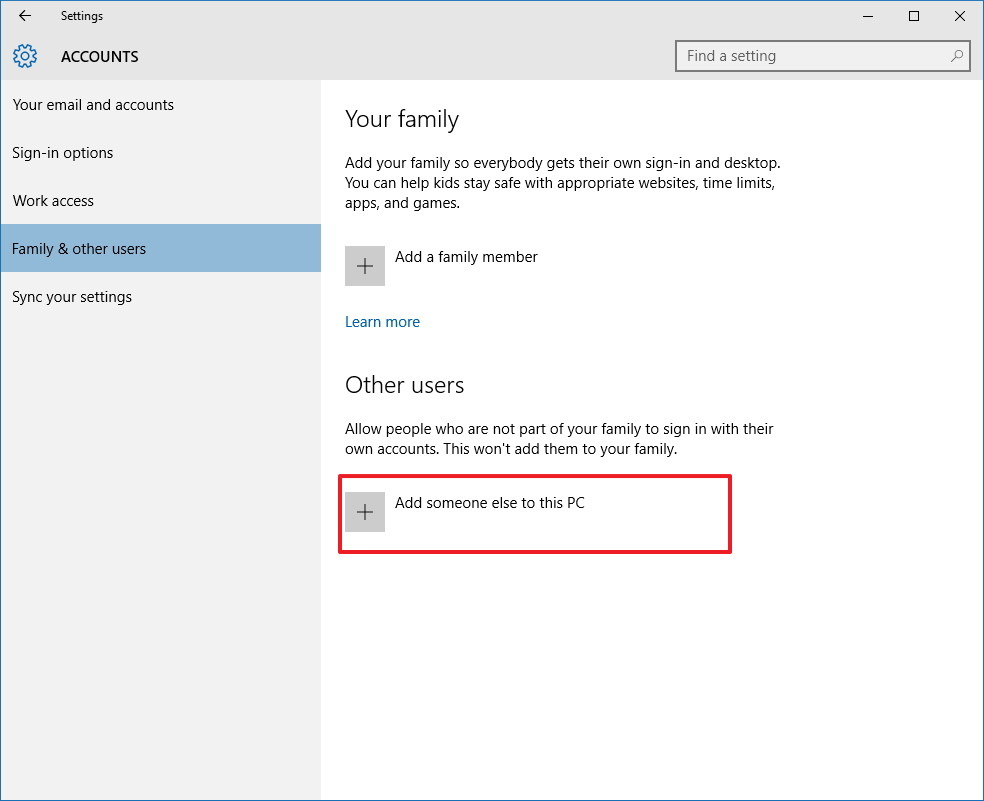
<p>3. Click chọn<strong>&nbsp;Family &amp; other users.</strong></p>

<p>4. Click chọn tiếp&nbsp;<strong>Add someone else to this PC.</strong></p>

<p><strong><img alt="Add someone else to this PC" data-i="15" data-src="https://st.quantrimang.com/photos/image/2016/03/31/Add-someone-else-to-this-PC.jpg" data-was-processed="true" height="801" src="https://phanmemthienha.com/uploads/news/2023_03/add-someone-else-to-this-pc.jpg" title="Add someone else to this PC" width="984" /></strong></p>

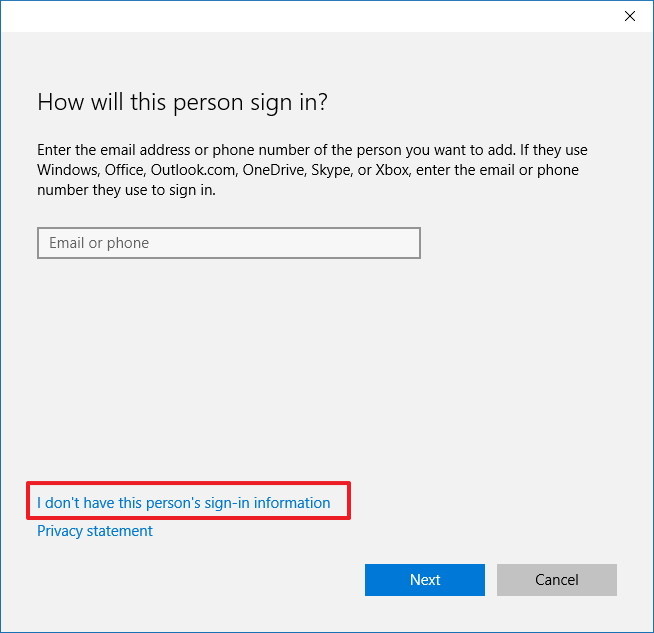
<p>5. Click chọn liên kết&nbsp;<strong>I don&#039;t have this person&#039;s sign-in information.</strong></p>

<p><strong><img alt="I don have this person sign in information" data-i="16" data-src="https://st.quantrimang.com/photos/image/2016/03/31/I-don-have-this-person-sign-in-information.jpg" data-was-processed="true" height="633" src="https://phanmemthienha.com/uploads/news/2023_03/i-don-have-this-person-sign-in-information.jpg" title="I don&#039;t have this person&#039;s sign-in information" width="654" /></strong></p>

<p>6. Click chọn liên kết&nbsp;<strong>Add a user without a Microsoft account</strong>.</p>

<p><img alt="Add a user without a Microsoft account" data-i="17" data-src="https://st.quantrimang.com/photos/image/2016/03/31/Add-a-user-without-a-Microsoft-account.jpg" data-was-processed="true" height="633" src="https://phanmemthienha.com/uploads/news/2023_03/add-a-user-without-a-microsoft-account.jpg" title=" Add a user without a Microsoft account" width="654" /></p>

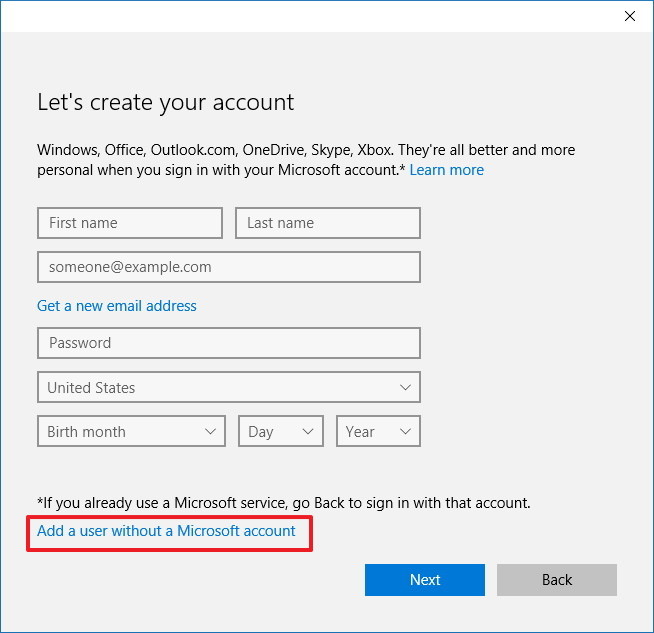
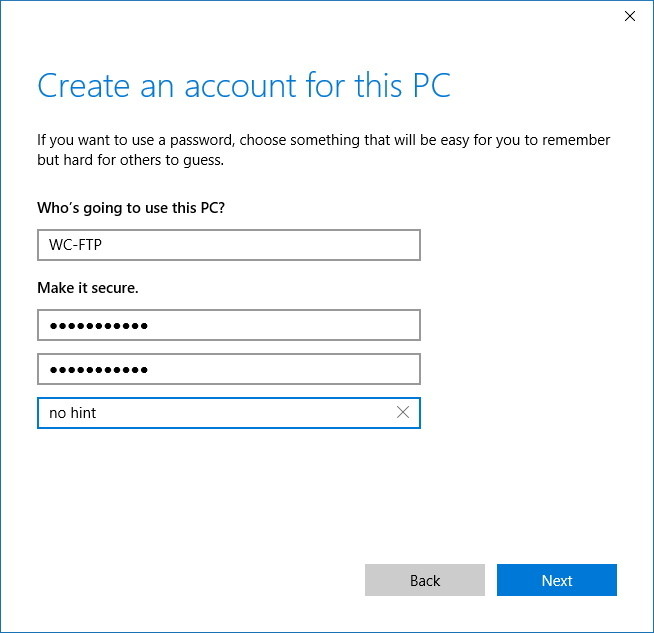
<p>7. Nhập thông tin tài khoản người dùng rồi click chọn&nbsp;<strong>Next</strong>&nbsp;để hoàn tất.</p>

<p><img alt="dien thongtin tai khoan" data-i="18" data-src="https://st.quantrimang.com/photos/image/2016/04/01/dien-thongtin-tai-khoan.jpg" data-was-processed="true" height="633" src="https://phanmemthienha.com/uploads/news/2023_03/dien-thongtin-tai-khoan.jpg" title="Nhập thông tin tài khoản người dùng " width="654" /></p>

<h3>Thêm một tài khoản người dùng để truy cập thư mục FPT:</h3>

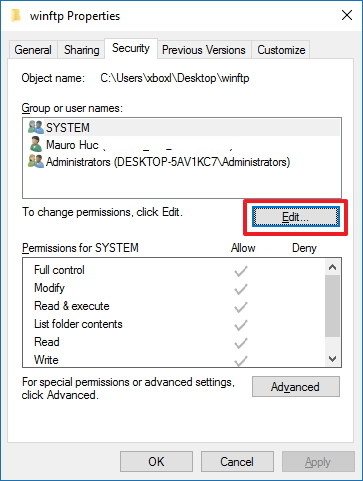
<p>1. Kích chuột phải vào thư mục FPT rồi chọn&nbsp;<strong>Properties</strong>.</p>

<p>2. Click chọn thẻ&nbsp;<strong>Security.</strong></p>

<p>3. Click chọn<strong>&nbsp;Edit.</strong></p>

<p><strong><img alt="edit" data-i="19" data-src="https://st.quantrimang.com/photos/image/2016/03/31/edit.jpg" data-was-processed="true" height="481" src="https://phanmemthienha.com/uploads/news/2023_03/edit.jpg" title="Edit" width="363" /></strong></p>

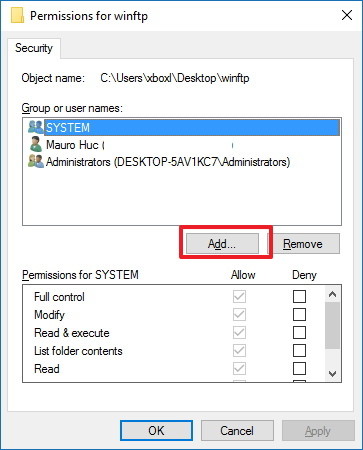
<p>4. Click chọn&nbsp;<strong>Add.</strong></p>

<p><strong><img alt="add" data-i="20" data-src="https://st.quantrimang.com/photos/image/2016/03/31/add.jpg" data-was-processed="true" height="450" src="https://phanmemthienha.com/uploads/news/2023_03/add.jpg" title=" Add" width="363" /></strong></p>

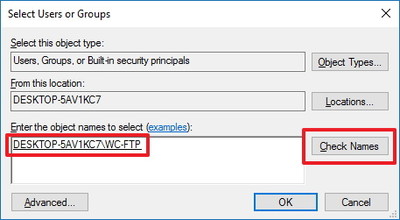
<p>5. Nhập tài tên tài khoản người dùng rồi click chọn&nbsp;<strong>Check Name.</strong></p>

<p><strong><img alt="check name" data-i="21" data-src="https://st.quantrimang.com/photos/image/2016/03/31/check-name.jpg" data-was-processed="true" height="220" src="https://phanmemthienha.com/uploads/news/2023_03/check-name.jpg" title="Check Name" width="400" /></strong></p>

<p>6. Click chọn<strong>&nbsp;OK.</strong></p>

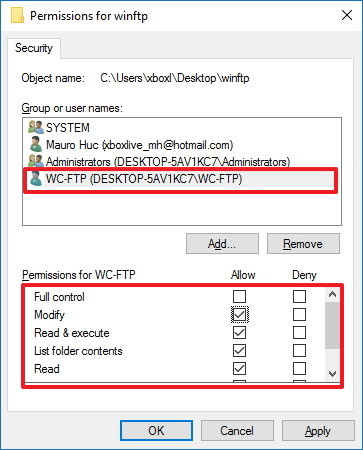
<p>7. Tại mục Group or user names, chọn tên tài khoản người dùng mà bạn vừa tạo rồi chọn quyền cho phép phù hợp.</p>

<p><img alt="group or username" data-i="22" data-src="https://st.quantrimang.com/photos/image/2016/03/31/group-or-username.jpg" data-was-processed="true" height="450" src="https://phanmemthienha.com/uploads/news/2023_03/group-or-username.jpg" title="Group or user names" width="363" /></p>

<p>8. Click chọn&nbsp;<strong>Apply</strong>.</p>

<p>9. Click chọn&nbsp;<strong>OK.</strong></p>

<h3>Cấu hình tài khoản người dùng mới để truy cập FPT Server:</h3>

<p>1. Nhấn tổ hợp phím&nbsp;<strong>Windows + X</strong>&nbsp;để mở Menu Power User rồi chọn&nbsp;<strong>Control Panel.</strong></p>

<p>2. Mở Administrative Tools.</p>

<p>3. Kích đúp chuột chọn&nbsp;<strong>Internet Information Services (IIS) Manager.</strong></p>

<p>4. Mở rộng&nbsp;<strong>Sites.</strong></p>

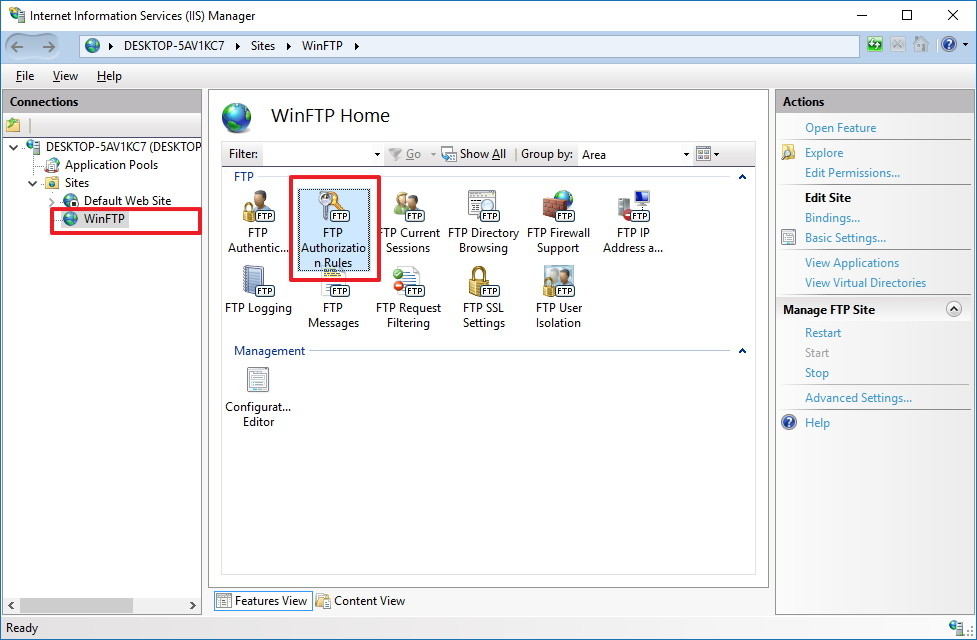
<p>5. Chọn<strong>&nbsp;FTP site</strong>&nbsp;sau đó kích đúp chuột vào&nbsp;<strong>Authorization Rules</strong>.</p>

<p><img alt="Authorization Rules" data-i="23" data-src="https://st.quantrimang.com/photos/image/2016/03/31/Authorization-Rules.jpg" data-was-processed="true" height="640" src="https://phanmemthienha.com/uploads/news/2023_03/authorization-rules.jpg" title="Authorization Rules" width="977" /></p>

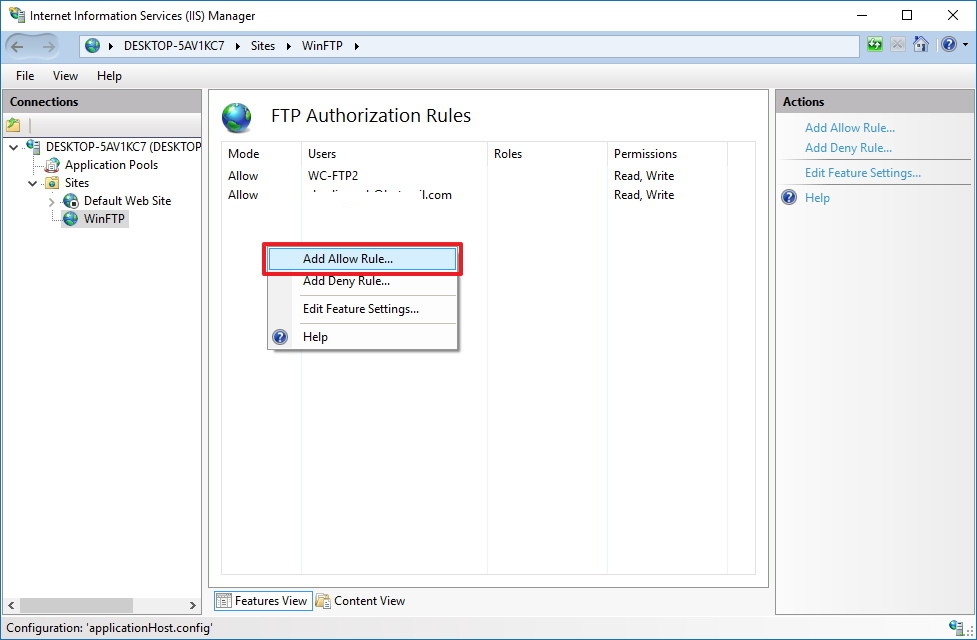
<p>6. Kích chuột phải rồi chọn<strong>&nbsp;Add Allow Rules.</strong></p>

<p><strong><img alt="Add Allow Rules" data-i="24" data-src="https://st.quantrimang.com/photos/image/2016/03/31/Add-Allow-Rules.jpg" data-was-processed="true" height="640" src="https://phanmemthienha.com/uploads/news/2023_03/add-allow-rules.jpg" title="Add Allow Rules" width="977" /></strong></p>

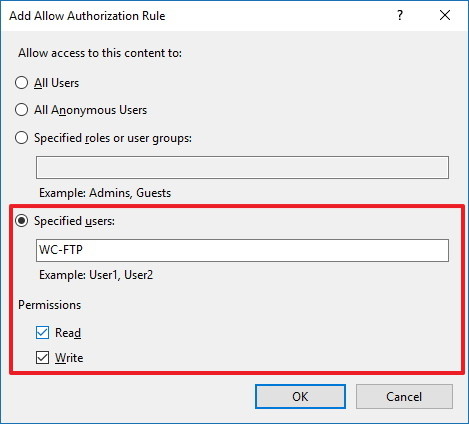
<p>7. Chọn&nbsp;<strong>Specified user</strong>&nbsp;rồi nhập tên tài khoản người dùng mới mà bạn vừa tạo.</p>

<p>8. Thiết lập quyền cho phép<strong>&nbsp;Read</strong>&nbsp;và&nbsp;<strong>Write</strong>&nbsp;nếu bạn muốn cho phép người dùng truy cập.</p>

<p>9. Click chọn&nbsp;<strong>OK</strong>.</p>

<p><img alt="click chon ok" data-i="25" data-src="https://st.quantrimang.com/photos/image/2016/03/31/click-chon-ok.jpg" data-was-processed="true" height="424" src="https://phanmemthienha.com/uploads/news/2023_03/click-chon-ok.jpg" title="chọn OK" width="469" /></p>

<p><br  />
&nbsp;</p>
		</div>
	</div>
	<div id="footer" class="clearfix">
		<div id="url">
			<strong>URL của bản tin này: </strong><a href="https://phanmemthienha.com/news/huong-dan-phan-mem/ftp-server-tren-windows-10-198.html" title="FTP Server trên Windows 10">https://phanmemthienha.com/news/huong-dan-phan-mem/ftp-server-tren-windows-10-198.html</a>

		</div>
		<div class="clear"></div>
		<div class="copyright">
			&copy; PHAN MEM THIEN HA
		</div>
		<div id="contact">
			<a href="mailto:phamhuy842005@gmail.com">phamhuy842005@gmail.com</a>
		</div>
	</div>
</div>
        <div id="timeoutsess" class="chromeframe">
            Bạn đã không sử dụng Site, <a onclick="timeoutsesscancel();" href="https://phanmemthienha.com/#">Bấm vào đây để duy trì trạng thái đăng nhập</a>. Thời gian chờ: <span id="secField"> 60 </span> giây
        </div>
        <div id="openidResult" class="nv-alert" style="display:none"></div>
        <div id="openidBt" data-result="" data-redirect=""></div>
<script src="https://phanmemthienha.com/assets/js/jquery/jquery.min.js"></script>
<script>var nv_base_siteurl="/",nv_lang_data="vi",nv_lang_interface="vi",nv_name_variable="nv",nv_fc_variable="op",nv_lang_variable="language",nv_module_name="news",nv_func_name="savefile",nv_is_user=0, nv_my_ofs=-4,nv_my_abbr="EDT",nv_cookie_prefix="nv4c_y8Y7D",nv_check_pass_mstime=1738000,nv_area_admin=0,nv_safemode=0,theme_responsive=1,nv_is_recaptcha=1,nv_recaptcha_sitekey="6LeSarIUAAAAAHRq6xkHwO6J0YYQOdMxgqKTXoL_",nv_recaptcha_type="image",nv_recaptcha_elements=[];</script>
<script src="https://phanmemthienha.com/assets/js/language/vi.js"></script>
<script src="https://phanmemthienha.com/assets/js/global.js"></script>
<script src="https://phanmemthienha.com/themes/default/js/news.js"></script>
<script src="https://phanmemthienha.com/themes/popovleather/js/main.js"></script>
<script src="https://phanmemthienha.com/themes/popovleather/js/bootstrap.min.js"></script>
</body>
</html>