<!DOCTYPE html>
	<html lang="vi" xmlns="http://www.w3.org/1999/xhtml" prefix="og: http://ogp.me/ns#">
	<head>
<title>Create the Virtual Host</title>
<meta name="description" content="Create the Virtual Host - Savefile - Tin Tức - https&#x3A;&#x002F;&#x002F;phanmemthienha.com&#x002F;news&#x002F;savefile&#x002F;huong-dan-phan-mem&#x002F;create-the-virtual-host-161.html">
<meta name="author" content="PHAN MEM THIEN HA">
<meta name="copyright" content="PHAN MEM THIEN HA [phamhuy842005@gmail.com]">
<meta name="robots" content="index, archive, follow, noodp">
<meta name="googlebot" content="index,archive,follow,noodp">
<meta name="msnbot" content="all,index,follow">
<meta name="generator" content="NukeViet v4.0">
<meta name="viewport" content="width=device-width, initial-scale=1">
<meta http-equiv="Content-Type" content="text/html; charset=utf-8">
<meta property="og:title" content="Create the Virtual Host">
<meta property="og:type" content="website">
<meta property="og:description" content="Savefile - Tin Tức - https&#x3A;&#x002F;&#x002F;phanmemthienha.com&#x002F;news&#x002F;savefile&#x002F;huong-dan-phan-mem&#x002F;create-the-virtual-host-161.html">
<meta property="og:site_name" content="PHAN MEM THIEN HA">
<meta property="og:url" content="https://phanmemthienha.com/news/huong-dan-phan-mem/create-the-virtual-host-161.html">
<link rel="shortcut icon" href="https://phanmemthienha.com/uploads/logo-shop-thien-ha-5.png">
<link rel="canonical" href="https://phanmemthienha.com/news/huong-dan-phan-mem/create-the-virtual-host-161.html">
<link rel="alternate" href="https://phanmemthienha.com/news/rss/" title="Tin Tức" type="application/rss+xml">
<link rel="alternate" href="https://phanmemthienha.com/news/rss/huong-dan-phan-mem/" title="Tin Tức - Hướng dẫn phần mềm" type="application/rss+xml">
<link rel="alternate" href="https://phanmemthienha.com/news/rss/huong-dan-noi-bo/" title="Tin Tức - Hướng dẫn nội bộ" type="application/rss+xml">
<link rel="alternate" href="https://phanmemthienha.com/news/rss/Doi-tac/" title="Tin Tức - Đối tác" type="application/rss+xml">
<link rel="alternate" href="https://phanmemthienha.com/news/rss/Tuyen-dung/" title="Tin Tức - Tuyển dụng" type="application/rss+xml">
<link rel="preload" as="script" href="https://phanmemthienha.com/assets/js/jquery/jquery.min.js">
<link rel="preload" as="script" href="https://phanmemthienha.com/assets/js/language/vi.js">
<link rel="preload" as="script" href="https://phanmemthienha.com/assets/js/global.js">
<link rel="preload" as="script" href="https://phanmemthienha.com/themes/default/js/news.js">
<link rel="preload" as="script" href="https://phanmemthienha.com/themes/popovleather/js/main.js">
<link rel="preload" as="script" href="https://phanmemthienha.com/themes/popovleather/js/bootstrap.min.js">
<link rel="StyleSheet" href="https://phanmemthienha.com/assets/css/font-awesome.min.css">
<link rel="StyleSheet" href="https://phanmemthienha.com/themes/popovleather/css/bootstrap.min.css">
<link rel="StyleSheet" href="https://phanmemthienha.com/themes/popovleather/css/style.css">
<link rel="StyleSheet" href="https://phanmemthienha.com/themes/popovleather/css/style.responsive.css">
<link rel="StyleSheet" href="https://phanmemthienha.com/themes/default/css/news.css">
<link rel="StyleSheet" href="https://phanmemthienha.com/assets/css/popovleather.vi.0.css?t=87">
<style>
	body{background: #fff;}
</style>
	</head>
	<body>
<div id="print">
	<div id="hd_print">
		<h2 class="pull-left">PHAN MEM THIEN HA</h2>
		<p class="pull-right"><a title="PHAN MEM THIEN HA" href="https://phanmemthienha.com/">https://phanmemthienha.com</a></p>
	</div>
	<div class="clear"></div>
	<hr />
	<div id="content">
		<h1>Create the Virtual Host</h1>
		<ul class="list-inline">
			<li>Thứ ba - 07/04/2020 07:13</li>
			<li class="hidden-print txtrequired"><em class="fa fa-print">&nbsp;</em><a title="In ra" href="javascript:;" onclick="window.print()">In ra</a></li>
			<li class="hidden-print txtrequired"><em class="fa fa-power-off">&nbsp;</em><a title="Đóng cửa sổ này" href="javascript:;" onclick="window.close()">Đóng cửa sổ này</a></li>
		</ul>
		<div class="clear"></div>
		<div id="hometext">
			Virtual Host là một cấu hình trong Apache để cho phép nhiều domain cùng chạy trên một máy chủ. Có một khái niệm khác được đề cập tới trong Nginx cũng có chức năng tương tự như Virtual Host được gọi là Server Block. Trong Log này mình chỉ muốn chia sẻ với các bạn còn lạ lẫm về Vhost cách để cấu hình một Virtual Host trong Windows, ở đây mình sử dụng XAMPP làm môi trường pháp triển.
		</div>
				<div class="imghome">
			<img alt="Create the Virtual Host" src="http://www.cloudways.com/blog/wp-content/uploads/image9-7.png" width="460" class="img-thumbnail" />
		</div>
		<div class="clear"></div>
		<div id="bodytext" class="clearfix">
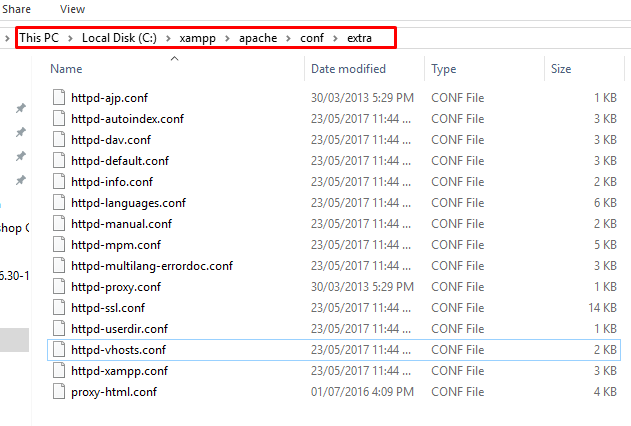
			<p>First, you need to navigate to <b>C:/xampp/apache/conf/extra</b> or wherever your XAMPP files are located.</p>

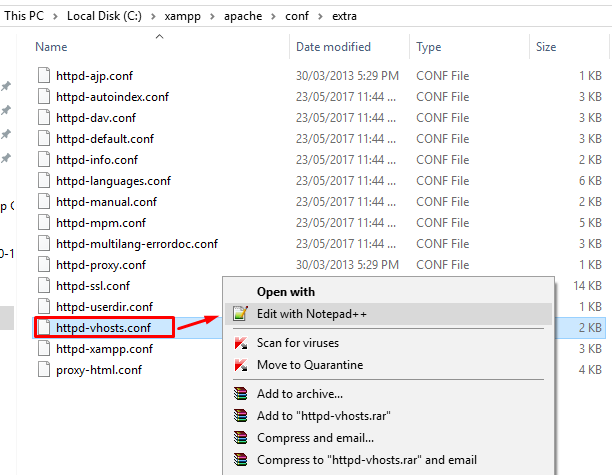
<p><img alt="Apache location" class="lazy aligncenter wp-image-32442 size-full img-responsive" data-original="http://www.cloudways.com/blog/wp-content/uploads/image9-7.png" height="426" sizes="(max-width: 631px) 100vw, 631px" src="http://www.cloudways.com/blog/wp-content/uploads/image9-7.png" srcset="https://www.cloudways.com/blog/wp-content/uploads/image9-7.png 631w, https://www.cloudways.com/blog/wp-content/uploads/image9-7-300x203.png 300w" style="display: block;" width="631" />Then, edit <b>httpd-vhosts.conf</b> with any <a href="https://www.cloudways.com/blog/top-ide-and-code-editors-php-development/">text editor</a>. In my case, I am using Notepad++.</p>

<p><img alt="httpd-vhosts file" class="lazy aligncenter wp-image-32443 size-full img-responsive" data-original="http://www.cloudways.com/blog/wp-content/uploads/image4-14.png" height="475" sizes="(max-width: 612px) 100vw, 612px" src="http://www.cloudways.com/blog/wp-content/uploads/image4-14.png" srcset="https://www.cloudways.com/blog/wp-content/uploads/image4-14.png 612w, https://www.cloudways.com/blog/wp-content/uploads/image4-14-300x233.png 300w" style="display: block;" width="612" /></p>

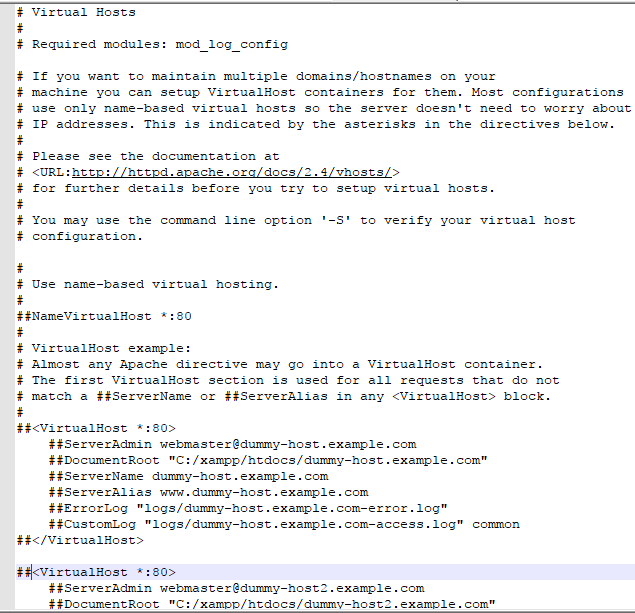
<p>The file looks something like this:</p>

<p><img alt="File look" class="lazy aligncenter wp-image-32444 size-full img-responsive" data-original="http://www.cloudways.com/blog/wp-content/uploads/image10-42.png" height="613" sizes="(max-width: 635px) 100vw, 635px" src="http://www.cloudways.com/blog/wp-content/uploads/image10-42.png" srcset="https://www.cloudways.com/blog/wp-content/uploads/image10-42.png 635w, https://www.cloudways.com/blog/wp-content/uploads/image10-42-300x290.png 300w" style="display: block;" width="635" /></p>

<p>Delete everything in the file and paste the following code:</p>

<div class="EnlighterJSWrapper enlighterEnlighterJSWrapper">
<ol class="hoverEnabled enlighterEnlighterJS EnlighterJS">
	<li class="odd"><span>&lt;VirtualHost *:</span><span class="nu0">80</span><span>&gt;</span></li>
	<li class="even"><span>DocumentRoot </span><span class="st0">&quot;c:/xampp/htdocs/WordPress&quot;</span></li>
	<li class="odd"><span>ServerName WordPress.localhost</span></li>
	<li class="even"><span>&lt;Directory </span><span class="st0">&quot;c:/xampp/htdocs/WordPress&quot;</span><span>&gt;</span></li>
	<li class="odd"><span>&lt;/Directory&gt;</span></li>
	<li class="even"><span>&lt;/VirtualHost&gt;</span></li>
</ol>
</div>

<p>In the above code:</p>

<ul>
	<li><b>VirtualHost: </b>Most web servers use port 80 as their default port. However, you can change the port to 8080, 8081, etc.</li>
	<li><b>DocumentRoot:</b>&nbsp;The folder where files of a site will exist. In our case, the folder name is “WordPress”.</li>
	<li><b>ServerName:</b>&nbsp;It is the URL for our virtual host.</li>
	<li><b>Directory:</b>&nbsp;It is the directory of our virtual host.</li>
</ul>

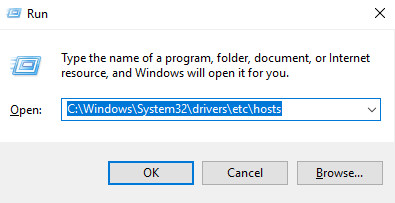
<p>Now, go to&nbsp;<b>Windows &gt; Search &gt; Run</b> and paste the following line:</p>

<div class="EnlighterJSWrapper enlighterEnlighterJSWrapper">
<ol class="hoverEnabled enlighterEnlighterJS EnlighterJS">
	<li class="odd"><span>C:\Windows\System32\drivers\etc\hosts</span></li>
</ol>
</div>

<p><img alt="Run" class="lazy aligncenter wp-image-32445 size-full img-responsive" data-original="http://www.cloudways.com/blog/wp-content/uploads/image6-11.png" height="203" sizes="(max-width: 395px) 100vw, 395px" src="http://www.cloudways.com/blog/wp-content/uploads/image6-11.png" srcset="https://www.cloudways.com/blog/wp-content/uploads/image6-11.png 395w, https://www.cloudways.com/blog/wp-content/uploads/image6-11-300x154.png 300w" style="display: block;" width="395" /></p>

<p>Next, open <b>Host</b> file in your text editor.</p>

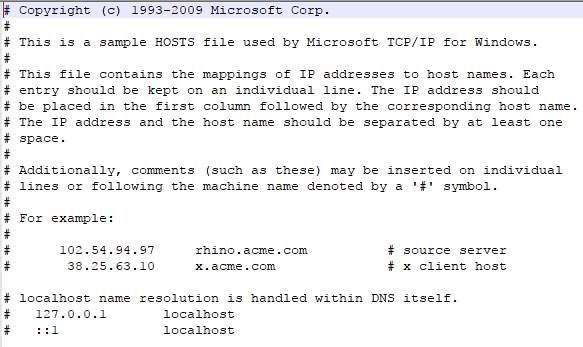
<p><img alt="Host File" class="lazy aligncenter wp-image-32446 size-full img-responsive" data-original="http://www.cloudways.com/blog/wp-content/uploads/image2-16.png" height="347" sizes="(max-width: 583px) 100vw, 583px" src="http://www.cloudways.com/blog/wp-content/uploads/image2-16.png" srcset="https://www.cloudways.com/blog/wp-content/uploads/image2-16.png 583w, https://www.cloudways.com/blog/wp-content/uploads/image2-16-300x179.png 300w" style="display: block;" width="583" /></p>

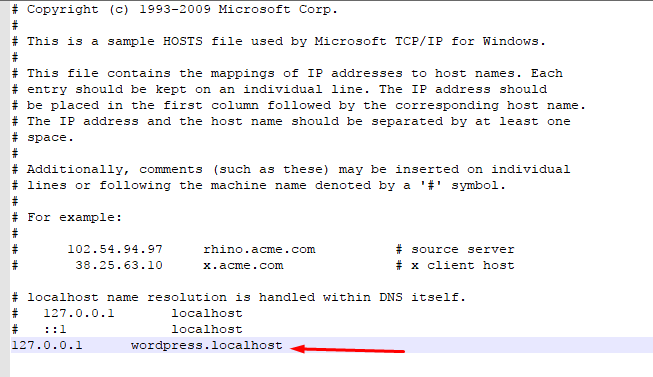
<p>Add the following line in the <b>Host</b> file.</p>

<div class="EnlighterJSWrapper enlighterEnlighterJSWrapper">
<ol class="hoverEnabled enlighterEnlighterJS EnlighterJS">
	<li class="odd"><span class="nu0">127.0</span><span class="nu0">.0</span><span class="nu0">.1</span><span> WordPress.localhost</span></li>
</ol>
</div>

<p><img alt="Edit Code in Host File" class="lazy aligncenter wp-image-32447 size-full img-responsive" data-original="http://www.cloudways.com/blog/wp-content/uploads/image5-10.png" height="377" sizes="(max-width: 653px) 100vw, 653px" src="http://www.cloudways.com/blog/wp-content/uploads/image5-10.png" srcset="https://www.cloudways.com/blog/wp-content/uploads/image5-10.png 653w, https://www.cloudways.com/blog/wp-content/uploads/image5-10-300x173.png 300w" style="display: block;" width="653" /></p>

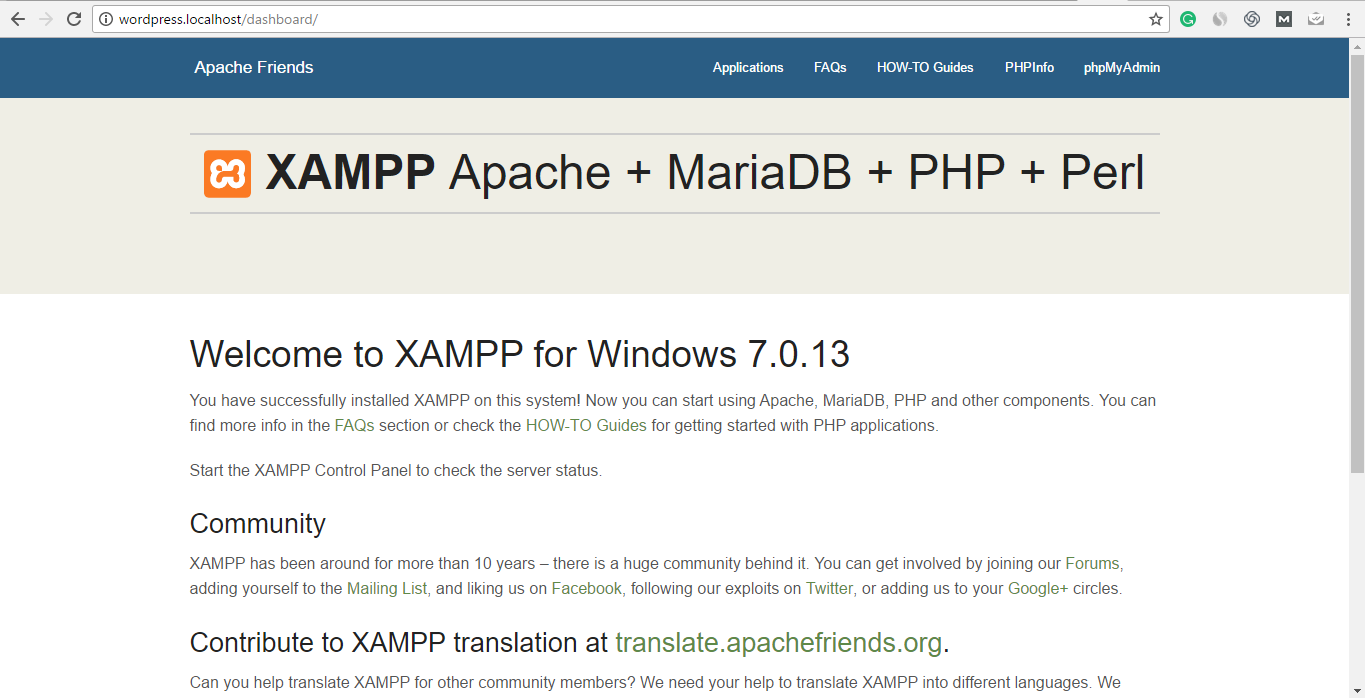
<p>Once you are done, check whether <b>wordpress.localhost</b> opens up in your browser.</p>

<p><img alt="Virtual Host Result" class="lazy aligncenter wp-image-32448 size-full img-responsive" data-original="http://www.cloudways.com/blog/wp-content/uploads/image7-8.png" height="698" sizes="(max-width: 1365px) 100vw, 1365px" src="http://www.cloudways.com/blog/wp-content/uploads/image7-8.png" srcset="https://www.cloudways.com/blog/wp-content/uploads/image7-8.png 1365w, https://www.cloudways.com/blog/wp-content/uploads/image7-8-300x153.png 300w, https://www.cloudways.com/blog/wp-content/uploads/image7-8-768x393.png 768w, https://www.cloudways.com/blog/wp-content/uploads/image7-8-1024x524.png 1024w" style="display: block;" width="1365" /></p>

<p>You can see that the domain has been added successfully. You are now free to run the application of your choice in the virtual host. In my case, I will opt for WordPress.</p>
&nbsp;

<p>Sau khi tiến hành cài đặt xong các bạn mở <code>&lt;thu_muc_cai_dat_xampp&gt;/apache/conf/httpd.conf</code></p>

<p>Tìm dòng <code>Include conf/extra/httpd-vhosts.conf</code> nếu thấy có dấu <code>#</code> ở đầu dòng thì xóa bỏ dấu <code>#</code> đi chỉ giữ lại <code>Include conf/extra/httpd-vhosts.conf</code> dòng này chỉ là để load config từ một file khác vào trong file httpd.conf. Với Xampp thì tập tin này được include mặc định. Nhưng mình vẫn muốn nói bước này để nếu các bạn có sử dụng các phần mềm khác để tạo Web Server như là <em>Vertrigo, WAMP,App Server...</em> thì vẫn có thể sử dụng được cấu hình Vhost. Đặc biệt là các bạn cũng có thể cài sử dụng một tập tin với tên khác ( Điều này không quan trọng lắm vì miễn sao các bạn Include được phần cấu hình Vhost vào trong httpd.conf là được.)</p>

<p>Giờ các bạn mở tệp tin<code>&lt;thu_muc_cai_dat_xampp&gt;/apache/conf/extra/httpd-vhosts.conf</code> copy đoạn code bên dưới và paste vào trong file httpd-vhosts.conf.</p>

<pre>
<code class="conf ui segment hljs apache"><span class="hljs-tag">&lt;VirtualHost *:80&gt;</span>
    <span class="hljs-keyword">ServerAdmin</span> webmaster@yourdomain.com
    <span class="hljs-keyword"><span class="hljs-common">DocumentRoot</span></span> <span class="hljs-string">&quot;&lt;đường dẫn thư mục sẽ được gọi tới khi truy cập vào youdomain.com&quot;</span>
    <span class="hljs-keyword"><span class="hljs-common">ServerName</span></span>  youdomain.com
    <span class="hljs-keyword">ErrorLog</span> <span class="hljs-string">&quot;logs/yourdomain.com-error.log&quot;</span>
    <span class="hljs-keyword">CustomLog</span> <span class="hljs-string">&quot;logs/yourdomain.com-access.log&quot;</span> common
    <span class="hljs-tag">&lt;Directory &quot;&lt;đường dẫn thư mục&quot;&gt;</span>
        <span class="hljs-keyword"><span class="hljs-common">Options</span></span> FollowSymLinks
        <span class="hljs-keyword">AllowOverride</span> <span class="hljs-literal">All</span>
        <span class="hljs-keyword">DirectoryIndex</span> index.php
        <span class="hljs-keyword">Require</span> <span class="hljs-literal">all</span> granted
    <span class="hljs-tag">&lt;/Directory&gt;</span>
<span class="hljs-tag">&lt;/VirtualHost&gt;</span>
</code></pre>

<ul class="ui list">
	<li><strong>&lt;VirtualHost&gt;&lt;/VirtualHost&gt;</strong> Đây là cặp thẻ báo hiệu mở đầu và kết thúc của một khai báo về Vhost. Có một lưu ý nhỏ là nếu bạn nào đổi port của Apache (8080,81,v.v...) thì cũng phải đổi số 80 theo port các bạn chuyển sang nhé.</li>
	<li><strong>ServerAdmin</strong> Từ khóa khai báo địa chỉ email của admin (Không bắt buộc).</li>
	<li><strong>DocumentRoot</strong> Đây là từ khóa khai báo đường dẫn của thư mục sẽ được gọi khi người dùng truy cập vào domain được cấu hình. Đường dẫn này có thể nằm ở bất kỳ một phân vùng nào.</li>
	<li><strong>ServerName</strong> Chính là domain mà bạn muốn đặt.</li>
	<li><strong>ErrorLog</strong> Chỉ định đường dẫn của file log khi có lỗi (không bắt buộc) <code>&lt;thu_muc_cai_dat_xampp&gt;/apache/logs</code> là thư mục chứa file log.</li>
	<li>
	<p><strong>CustomLog</strong> Log lại tất cả các Uri mà người dùng request không bắt buộc) <code>&lt;thu_muc_cai_dat_xampp&gt;/apache/logs</code> là thư mục chứa file log.</p>
	</li>
	<li>
	<p><strong>&lt;Directory&gt;&lt;/Directory&gt;</strong> Đây là cặp thẻ dùng để cấp quyền truy cập cho thư mục nếu thư mục không được cấp quyền sẽ gặp lỗi 403 khi các bạn cố gắng truy cập. Đường dẫn thư mục của bạn có thể là một regular expression. Nếu các bạn không rõ về Regex thì các bạn có thể dùng đường dẫn thư mục giống với khai báo trong <code>DocumentRoot</code> hoặc tham khảo thêm tại: <a href="http://httpd.apache.org/docs/2.4/en/mod/core.html#directory">http://httpd.apache.org/docs/2.4/en/mod/core.html#directory</a></p>
	</li>
	<li>
	<p><strong>Options FollowSymLinks</strong> Option này cho phép bạn truy cập theo symbolic link (giống như shortcut trong windows vậy). Ngoài ra còn có nhiều các options khác, các bạn có thể tham khảo thêm tại: <a href="http://httpd.apache.org/docs/2.4/en/mod/core.html#options">http://httpd.apache.org/docs/2.4/en/mod/core.html#options</a></p>
	</li>
	<li>
	<p><strong>AllowOverride All</strong> cho phép bạn overwrite các config bằng file htaccess.</p>
	</li>
	<li>
	<p><strong>DirectoryIndex index.php</strong> Khi các bạn truy cập vào thư mục ( không chỉ rõ cụ thể là file nào) thì file index.php sẽ được gọi.</p>
	</li>
	<li>
	<p><strong>Require all granted</strong> là cho phép tất cả các máy khác được truy cập vào thư mục đang được cấu hình. <em>Chú ý: từ phiên bản 2.2 trở về trước thì Apache sử dụng <code>Allow from all</code> để thay thế cho <code>Require all granted</code></em></p>
	</li>
</ul>

<p>Các bạn khởi động lại Apache bằng cách là khởi động phần mềm <code>XAMPP Control Panel</code> dòng nếu dòng Apache đang running thì các bạn stop và start lại, còn nếu đang ở chế độ tắt rồi thì các bạn chỉ cần start là được.</p>

<p>Ok vậy là bạn đã cấu hình xong về phần của Apache giờ chỉ việc đăng ký DNS cho domain của bạn nữa là mọi việc hoàn tất.<br  />
Các bạn mở file <code>%windir%/system32/drivers/etc/hosts</code> bằng notepad hoặc bất kỳ trình editor nào. Thêm vào cuối file và lưu lại. Nếu bạn không lưu được file hosts thì nhớ tắt tình năng readonly và thử chạy lại bằng mode Administrator nhé.</p>

<pre>
<code class="ui segment hljs vim"><span class="hljs-number">127.0</span>.<span class="hljs-number">0.1</span> yourdomain.<span class="hljs-keyword">com</span>
</code></pre>

<p>Khi các bạn gõ địa chỉ yourdomain.com thì máy sẽ ưu tiên tìm địa chỉ IP của domain đó trong file hosts của hệ điều hành trước tiên.<br  />
Nếu không có thì nó sẽ đi tìm địa chỉ IP của domain này thông qua các DNS Server trên Internet. Vì bạn đã khai báo trong file hosts nên nó sẽ sử dụng địa chỉ IP được khai báo trong đó luôn. Ở đây địa chỉ IP <code>127.0.0.1</code> trỏ về chính máy đang truy cập (chính là máy của bạn - còn nếu cấu hình trên server thì đó chính là bản thân máy server luôn). Bạn có thể sử dụng dài IP từ <code>127.0.0.1 -&gt; 127.255.225.254</code> đây là dải IP trỏ về máy của bạn ( Nguyên dải luôn chứ không phải chỉ là <code>127.0.0.1</code> nhé ).</p>

<p>Giờ các bạn mở trình duyệt và gõ vào thanh địa chỉ thay thế dòng localhost xấu xí bằng một domain của riêng bạn. <a href="http://yourdomain.com">http://yourdomain.com</a> yourdomain cũng có thể là tuan.tv, doan-totnghiep.com(chấm local. chấm canh, chấm mắm, hay chấm bất kì thứ gì bạn thích nhé, chỉ cần nhớ là đã khai báo trong ServerName và file host là được).</p>

<h1 class="ui dividing header">Tổng kết</h1>

<p>Việc sử dụng Virtual Host có vài lợi ích sau.</p>

<ul class="ui list">
	<li>Bạn có thể truy cập vào bất kỳ thư mục code nào mà không cần phải copy vào <code>htdocs</code> trong XAMPP.</li>
	<li>Nếu bạn dùng folder code ở một phân vùng khác thì bạn không cần phải lo lắng backup lại folder code mỗi lần cài lại windows.</li>
	<li>Nhìn có vẻ nguy hiểm hơn :v</li>
</ul>

<p>Các bạn cũng có thể cấu hình Vhost với WAMP, APPServer, USBServer các cấu hình cũng không khác nhiều lắm. Vì tất cả các phần mềm này đều dùng Apache, Mysql và PHP. Vhost là một tình năng của Apache chứ không phải của XAMPP nên phần mềm nào dùng Apache thì đều có thể cấu hình Vhost theo cách tương tự, điểm khác biệt chỉ là khác về nơi đặt file <code>httpd.conf</code>. Chúc các bạn thành công.</p>
<br  />
<br  />
&nbsp;
		</div>
	</div>
	<div id="footer" class="clearfix">
		<div id="url">
			<strong>URL của bản tin này: </strong><a href="https://phanmemthienha.com/news/huong-dan-phan-mem/create-the-virtual-host-161.html" title="Create the Virtual Host">https://phanmemthienha.com/news/huong-dan-phan-mem/create-the-virtual-host-161.html</a>

		</div>
		<div class="clear"></div>
		<div class="copyright">
			&copy; PHAN MEM THIEN HA
		</div>
		<div id="contact">
			<a href="mailto:phamhuy842005@gmail.com">phamhuy842005@gmail.com</a>
		</div>
	</div>
</div>
        <div id="timeoutsess" class="chromeframe">
            Bạn đã không sử dụng Site, <a onclick="timeoutsesscancel();" href="https://phanmemthienha.com/#">Bấm vào đây để duy trì trạng thái đăng nhập</a>. Thời gian chờ: <span id="secField"> 60 </span> giây
        </div>
        <div id="openidResult" class="nv-alert" style="display:none"></div>
        <div id="openidBt" data-result="" data-redirect=""></div>
<div id="run_cronjobs" style="visibility:hidden;display:none;"><img alt="" src="/index.php?second=cronjobs&amp;p=t7mx18X0" width="1" height="1" /></div>
<script src="https://phanmemthienha.com/assets/js/jquery/jquery.min.js"></script>
<script>var nv_base_siteurl="/",nv_lang_data="vi",nv_lang_interface="vi",nv_name_variable="nv",nv_fc_variable="op",nv_lang_variable="language",nv_module_name="news",nv_func_name="savefile",nv_is_user=0, nv_my_ofs=-4,nv_my_abbr="EDT",nv_cookie_prefix="nv4c_y8Y7D",nv_check_pass_mstime=1738000,nv_area_admin=0,nv_safemode=0,theme_responsive=1,nv_is_recaptcha=1,nv_recaptcha_sitekey="6LeSarIUAAAAAHRq6xkHwO6J0YYQOdMxgqKTXoL_",nv_recaptcha_type="image",nv_recaptcha_elements=[];</script>
<script src="https://phanmemthienha.com/assets/js/language/vi.js"></script>
<script src="https://phanmemthienha.com/assets/js/global.js"></script>
<script src="https://phanmemthienha.com/themes/default/js/news.js"></script>
<script src="https://phanmemthienha.com/themes/popovleather/js/main.js"></script>
<script src="https://phanmemthienha.com/themes/popovleather/js/bootstrap.min.js"></script>
</body>
</html>