<!DOCTYPE html>
	<html lang="vi" xmlns="http://www.w3.org/1999/xhtml" prefix="og: http://ogp.me/ns#">
	<head>
<title>Cấu Hình FTP Trên Windows Server 2012</title>
<meta name="description" content="Cấu Hình FTP Trên Windows Server 2012 - Savefile - Tin Tức - https&#x3A;&#x002F;&#x002F;phanmemthienha.com&#x002F;news&#x002F;savefile&#x002F;huong-dan-phan-mem&#x002F;cau-hinh-ftp-tren-windows-server-2012-93.html">
<meta name="author" content="PHAN MEM THIEN HA">
<meta name="copyright" content="PHAN MEM THIEN HA [phamhuy842005@gmail.com]">
<meta name="robots" content="index, archive, follow, noodp">
<meta name="googlebot" content="index,archive,follow,noodp">
<meta name="msnbot" content="all,index,follow">
<meta name="generator" content="NukeViet v4.0">
<meta name="viewport" content="width=device-width, initial-scale=1">
<meta http-equiv="Content-Type" content="text/html; charset=utf-8">
<meta property="og:title" content="Cấu Hình FTP Trên Windows Server 2012">
<meta property="og:type" content="website">
<meta property="og:description" content="Savefile - Tin Tức - https&#x3A;&#x002F;&#x002F;phanmemthienha.com&#x002F;news&#x002F;savefile&#x002F;huong-dan-phan-mem&#x002F;cau-hinh-ftp-tren-windows-server-2012-93.html">
<meta property="og:site_name" content="PHAN MEM THIEN HA">
<meta property="og:url" content="https://phanmemthienha.com/news/huong-dan-phan-mem/cau-hinh-ftp-tren-windows-server-2012-93.html">
<link rel="shortcut icon" href="https://phanmemthienha.com/uploads/logo-shop-thien-ha-5.png">
<link rel="canonical" href="https://phanmemthienha.com/news/huong-dan-phan-mem/cau-hinh-ftp-tren-windows-server-2012-93.html">
<link rel="alternate" href="https://phanmemthienha.com/news/rss/" title="Tin Tức" type="application/rss+xml">
<link rel="alternate" href="https://phanmemthienha.com/news/rss/huong-dan-phan-mem/" title="Tin Tức - Hướng dẫn phần mềm" type="application/rss+xml">
<link rel="alternate" href="https://phanmemthienha.com/news/rss/huong-dan-noi-bo/" title="Tin Tức - Hướng dẫn nội bộ" type="application/rss+xml">
<link rel="alternate" href="https://phanmemthienha.com/news/rss/Doi-tac/" title="Tin Tức - Đối tác" type="application/rss+xml">
<link rel="alternate" href="https://phanmemthienha.com/news/rss/Tuyen-dung/" title="Tin Tức - Tuyển dụng" type="application/rss+xml">
<link rel="preload" as="script" href="https://phanmemthienha.com/assets/js/jquery/jquery.min.js">
<link rel="preload" as="script" href="https://phanmemthienha.com/assets/js/language/vi.js">
<link rel="preload" as="script" href="https://phanmemthienha.com/assets/js/global.js">
<link rel="preload" as="script" href="https://phanmemthienha.com/themes/default/js/news.js">
<link rel="preload" as="script" href="https://phanmemthienha.com/themes/popovleather/js/main.js">
<link rel="preload" as="script" href="https://phanmemthienha.com/themes/popovleather/js/bootstrap.min.js">
<link rel="StyleSheet" href="https://phanmemthienha.com/assets/css/font-awesome.min.css">
<link rel="StyleSheet" href="https://phanmemthienha.com/themes/popovleather/css/bootstrap.min.css">
<link rel="StyleSheet" href="https://phanmemthienha.com/themes/popovleather/css/style.css">
<link rel="StyleSheet" href="https://phanmemthienha.com/themes/popovleather/css/style.responsive.css">
<link rel="StyleSheet" href="https://phanmemthienha.com/themes/default/css/news.css">
<link rel="StyleSheet" href="https://phanmemthienha.com/assets/css/popovleather.vi.0.css?t=87">
<style>
	body{background: #fff;}
</style>
	</head>
	<body>
<div id="print">
	<div id="hd_print">
		<h2 class="pull-left">PHAN MEM THIEN HA</h2>
		<p class="pull-right"><a title="PHAN MEM THIEN HA" href="https://phanmemthienha.com/">https://phanmemthienha.com</a></p>
	</div>
	<div class="clear"></div>
	<hr />
	<div id="content">
		<h1>Cấu Hình FTP Trên Windows Server 2012</h1>
		<ul class="list-inline">
			<li>Thứ hai - 03/12/2018 18:23</li>
			<li class="hidden-print txtrequired"><em class="fa fa-print">&nbsp;</em><a title="In ra" href="javascript:;" onclick="window.print()">In ra</a></li>
			<li class="hidden-print txtrequired"><em class="fa fa-power-off">&nbsp;</em><a title="Đóng cửa sổ này" href="javascript:;" onclick="window.close()">Đóng cửa sổ này</a></li>
		</ul>
		<div class="clear"></div>
		<div id="hometext">
			Hôm nay mình sẽ hướng dẫn các bạn thực hiện cài đặt và cấu hình FTP trên nền tảng Windows Server 2012.
		</div>
				<div class="imghome">
			<img alt="Cấu Hình FTP Trên Windows Server 2012" src="https://phanmemthienha.com/uploads/news/2018_12/113-e1447161467415.jpg" width="460" class="img-thumbnail" />
		</div>
		<div class="clear"></div>
		<div id="bodytext" class="clearfix">
			<div class="td-post-content">
<h4><span style="color: rgb(0, 0, 0);"><span style="text-decoration: underline"><strong>FTP&nbsp;Là Gì?</strong></span></span></h4>

<p><span style="color: rgb(0, 0, 0);">FTP (viết tắt của <i>File Transfer Protocol</i> dịch ra là “Giao thức truyền tập tin”)</span></p>

<p><span style="color: rgb(0, 0, 0);">Thường được dùng để trao đổi tập tin qua mạng lưới truyền thông dùng giao thức TCP/IP (chẳng hạn như Internet&nbsp;– mạng ngoại bộ – mạng nội bộ). Hoạt động của FTP cần có hai máy tính, một máy chủ&nbsp;và mộtmáy khách). <b>Máy chủ FTP</b>, dùng chạy phần mềm cung cấp dịch vụ FTP, gọi là trình chủ, lắng nghe yêu cầu về dịch vụ của các máy tính khác trên mạng lưới.</span></p>

<p>Hôm nay mình sẽ hướng dẫn các bạn thực hiện cài đặt và cấu hình FTP trên nền tảng Windows Server 2012.</p>

<p><strong>Chuẩn Bị:</strong></p>

<ul>
	<li>Máy Windows server 2012 ( ở đây các bạn có thể cài trực tiếp trên máy DC, nếu muốn truy cập bằng tên các bạn cần phải có DNS server)</li>
	<li>Lưu Ý máy đã được cài IIS 8 ( trong bài viết hôm trước mình đã hướng dẫn các bạn cài đặt IIS 8 và Web server các bạn có thể xem&nbsp;<a href="http://www.adminvietnam.org/iis-8-cau-hinh-web-tren-windows-server-2012/639/" target="_blank">tại đây</a>)</li>
	<li>Máy Windows 8 dùng để test</li>
</ul>

<p><strong>Thực Hiện:</strong></p>

<ul>
	<li>
	<ul>
		<li>Trước tiên các bạn tạo 1 thư mục FTP ( ở đây mình tạo thư mục FTP trên ổ C. vìa mình chỉ làm demo, để an toàn các bạn không nên đặt trên ổ C) và tạo 1 file .txt trong thư mục FPT để test.</li>
		<li>Trong bài trước mình đã hướng dẫn cài đặt dịch vụ FTP nhưng hôm nay mình sẽ hướng dẫn lại cách cài FTP.</li>
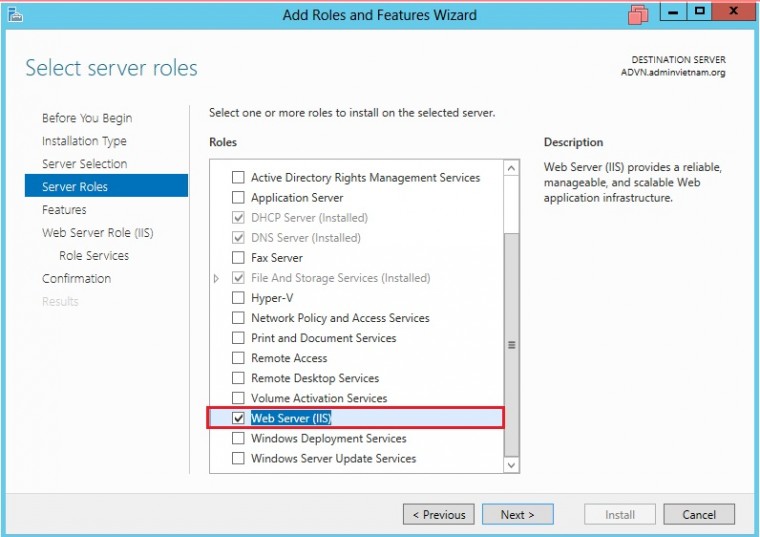
		<li>Vào <strong>Server Manager</strong> =&gt; <strong>Add roles and features</strong> =&gt; click đến <strong>Server Roles</strong> chọn vào <strong>Web Server (IIS)</strong> và chọn <strong>Add features.</strong><br  />
		<a href="https://phanmemthienha.com/uploads/news/2018_12/113-e1447161467415.jpg"><img alt="113 e1447161467415" class="size-full wp-image-812 aligncenter td-animation-stack-type0-2" height="537" src="https://phanmemthienha.com/uploads/news/2018_12/113-e1447161467415.jpg" width="760" /></a></li>
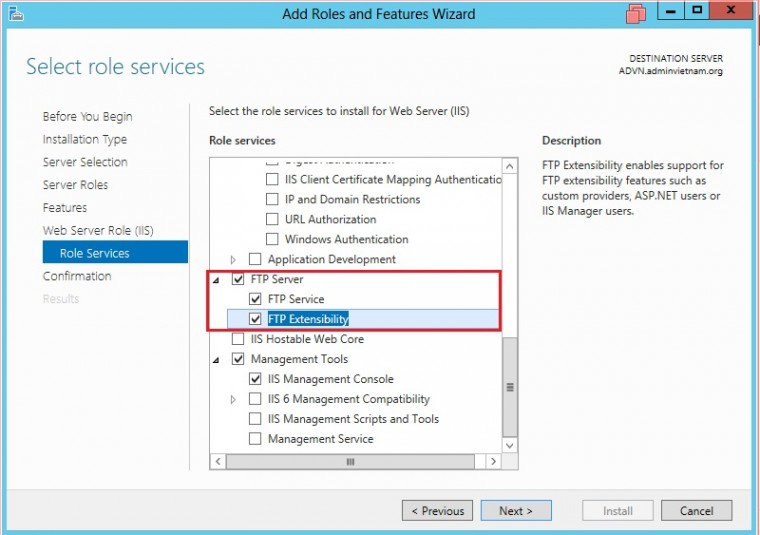
		<li>Click Next đến <strong>Roles Service</strong> kéo xuống dưới và chọn vào<strong> FTP SEerver</strong>&nbsp;( tại đây các bạn chọn cả hai là <strong>FTP Service</strong> và <strong>FTP Extensibility</strong>)<br  />
		<a href="https://phanmemthienha.com/uploads/news/2018_12/23-e1447161844244.jpg"><img alt="23 e1447161844244" class="size-full wp-image-814 aligncenter td-animation-stack-type0-2" height="535" src="https://phanmemthienha.com/uploads/news/2018_12/23-e1447161844244.jpg" width="760" /></a></li>
		<li>Click Next và chọn Install cài đặt, quá trình cài đặt hoàn tất click vào close</li>
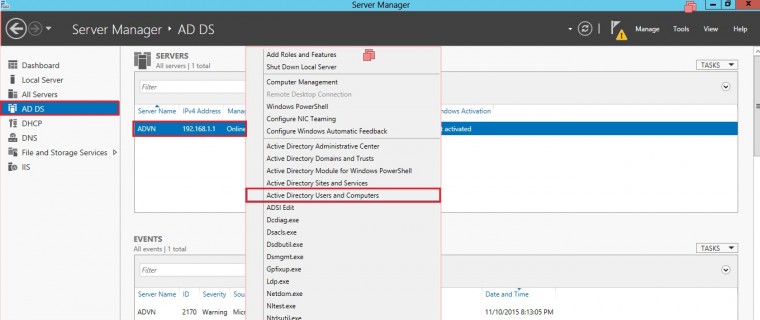
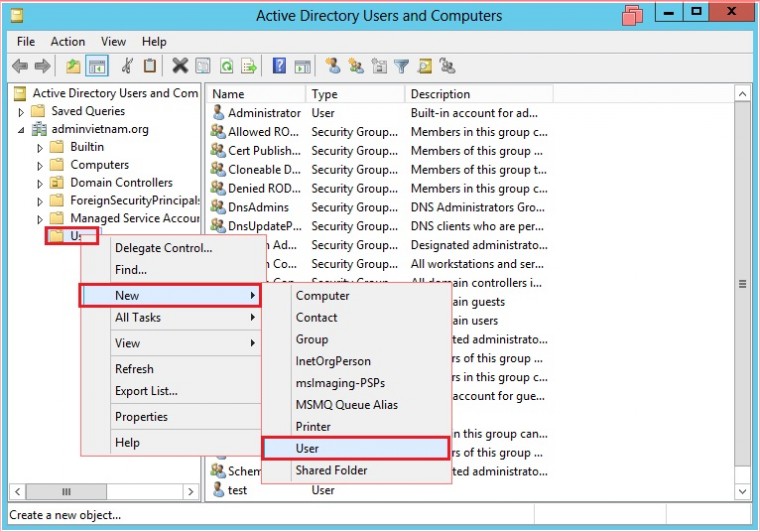
		<li>Tiếp đến là tạo user và cấp quyền cho user.</li>
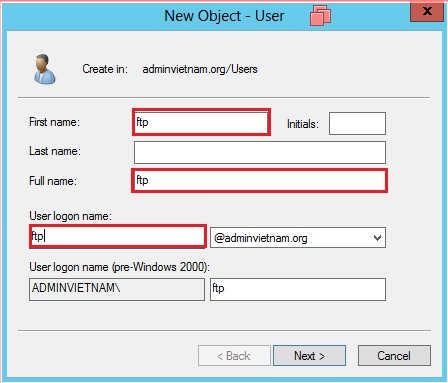
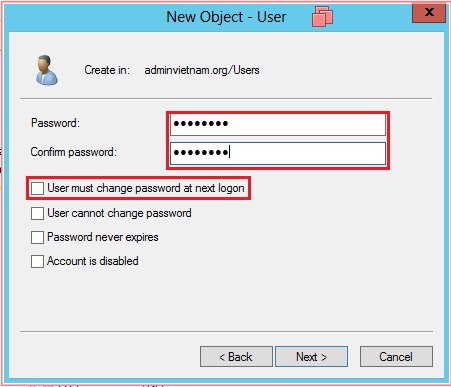
		<li>Để tạo user các bạn thực hiện như sau<br  />
		<a href="https://phanmemthienha.com/uploads/news/2018_12/31-e1447162057350.jpg"><img alt="31 e1447162057350" class="size-full wp-image-815 aligncenter td-animation-stack-type0-2" height="320" src="https://phanmemthienha.com/uploads/news/2018_12/31-e1447162057350.jpg" width="760" /></a><a href="https://phanmemthienha.com/uploads/news/2018_12/41-e1447162169706.jpg"><img alt="41 e1447162169706" class="size-full wp-image-816 aligncenter td-animation-stack-type0-2" height="532" src="https://phanmemthienha.com/uploads/news/2018_12/41-e1447162169706.jpg" width="760" /></a><a href="https://phanmemthienha.com/uploads/news/2018_12/51.jpg"><img alt="51" class="size-full wp-image-817 aligncenter td-animation-stack-type0-2" height="383" sizes="(max-width: 448px) 100vw, 448px" src="https://phanmemthienha.com/uploads/news/2018_12/51.jpg" srcset="/uploads/news/2018_12/51.jpg 448w, /uploads/news/2018_12/51-300x256.jpg 300w" width="448" /></a><a href="https://phanmemthienha.com/uploads/news/2018_12/61.jpg"><img alt="6" class="size-full wp-image-818 aligncenter td-animation-stack-type0-2" height="387" sizes="(max-width: 451px) 100vw, 451px" src="https://phanmemthienha.com/uploads/news/2018_12/61.jpg" srcset="/uploads/news/2018_12/61.jpg 451w, /uploads/news/2018_12/61-300x257.jpg 300w" width="451" /></a></li>
		<li>Click Next và chọn Finish.</li>
		<li>Tiếp đến là phân quyền cho User trong thư mục FTP. để phân quyền các bạn làm như sau</li>
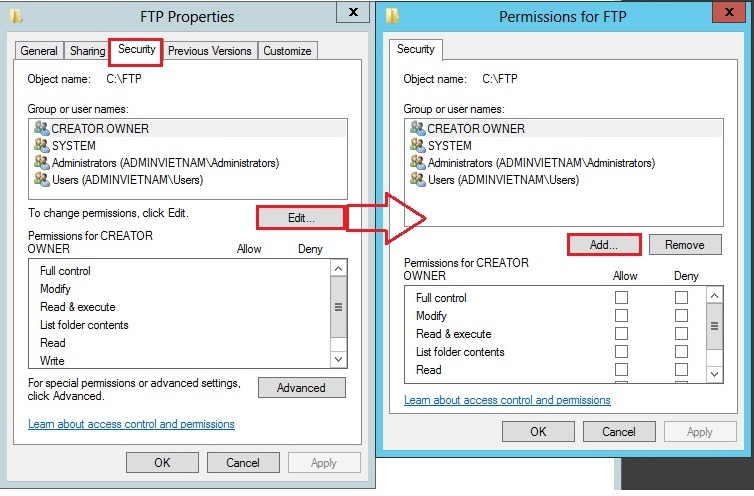
		<li>Click phải vào thư mục FTP vừa tạo và chọn properties<br  />
		<a href="https://phanmemthienha.com/uploads/news/2018_12/71-e1447162564325.jpg"><img alt="7" class="size-full wp-image-820 aligncenter td-animation-stack-type0-2" height="535" src="https://phanmemthienha.com/uploads/news/2018_12/71-e1447162564325.jpg" width="760" /></a><a href="https://phanmemthienha.com/uploads/news/2018_12/83.jpg"><img alt="8" class="size-full wp-image-822 aligncenter td-animation-stack-type0-2" height="496" sizes="(max-width: 754px) 100vw, 754px" src="https://phanmemthienha.com/uploads/news/2018_12/83.jpg" srcset="/uploads/news/2018_12/83.jpg 754w, /uploads/news/2018_12/83-300x197.jpg 300w, /uploads/news/2018_12/83-696x458.jpg 696w, /uploads/news/2018_12/83-741x486.jpg 741w, /uploads/news/2018_12/83-638x420.jpg 638w" width="754" /></a></li>
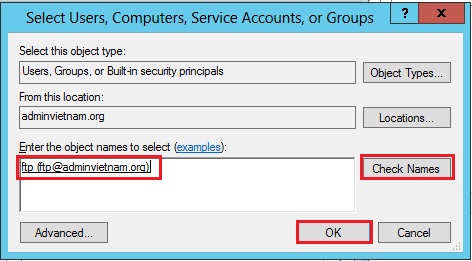
		<li>Khi click vào <strong>add</strong> tab mới sẽ mở ra tại đây bạn gõ vào ftp ( là user vừa tạo) rồi click vào <strong>check name</strong> và click vào <strong>Ok<br  />
		<a href="https://phanmemthienha.com/uploads/news/2018_12/93.jpg"><img alt="9" class="size-full wp-image-823 aligncenter td-animation-stack-type0-2" height="261" sizes="(max-width: 472px) 100vw, 472px" src="https://phanmemthienha.com/uploads/news/2018_12/93.jpg" srcset="/uploads/news/2018_12/93.jpg 472w, /uploads/news/2018_12/93-300x166.jpg 300w" width="472" /></a></strong></li>
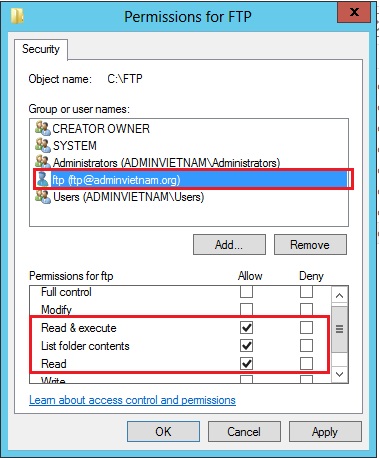
		<li>Sau đó cấp quyền cho user ftp ( tại thư mục này administrator full control nên không cần chỉnh sửa user administrator)<br  />
		<a href="https://phanmemthienha.com/uploads/news/2018_12/101.jpg"><img alt="10" class="size-full wp-image-824 aligncenter td-animation-stack-type0-2" height="458" sizes="(max-width: 379px) 100vw, 379px" src="https://phanmemthienha.com/uploads/news/2018_12/101.jpg" srcset="/uploads/news/2018_12/101.jpg 379w, /uploads/news/2018_12/101-248x300.jpg 248w, /uploads/news/2018_12/101-348x420.jpg 348w" width="379" /></a></li>
		<li>Click vào Apply và Ok.</li>
		<li>Bây giờ bắt đầu cấu hình FTP</li>
		<li>Tại <strong>Server Manager</strong> =&gt; <strong>IIS</strong> =&gt; Click phải chọn <strong>IIS Manager</strong><br  />
		<a href="https://phanmemthienha.com/uploads/news/2018_12/114-e1447163330575.jpg"><img alt="11" class="size-full wp-image-825 aligncenter td-animation-stack-type0-2" height="309" src="https://phanmemthienha.com/uploads/news/2018_12/114-e1447163330575.jpg" width="760" /></a><a href="https://phanmemthienha.com/uploads/news/2018_12/121-e1447163427797.jpg"><img alt="12" class="size-full wp-image-826 aligncenter td-animation-stack-type0-2" height="388" src="https://phanmemthienha.com/uploads/news/2018_12/121-e1447163427797.jpg" width="760" /></a></li>
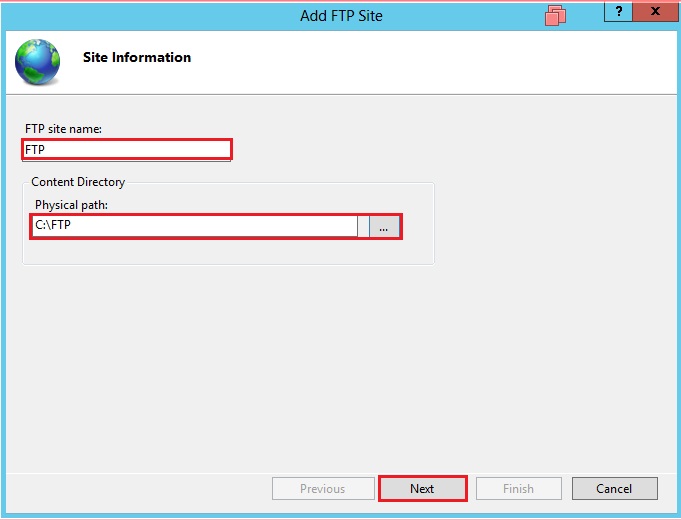
		<li>Tại đây các bạn nhập vào tên ( FTP site name) và chọn đường dẫn về thư mục FPT lúc nãy<br  />
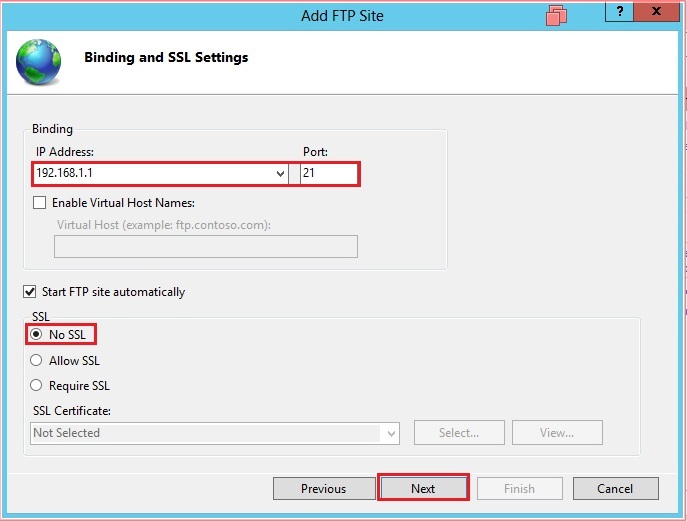
		<a href="https://phanmemthienha.com/uploads/news/2018_12/132.jpg"><img alt="13" class="size-full wp-image-827 aligncenter td-animation-stack-type0-2" height="520" sizes="(max-width: 681px) 100vw, 681px" src="https://phanmemthienha.com/uploads/news/2018_12/132.jpg" srcset="/uploads/news/2018_12/132.jpg 681w, /uploads/news/2018_12/132-300x229.jpg 300w, /uploads/news/2018_12/132-80x60.jpg 80w, /uploads/news/2018_12/132-550x420.jpg 550w" width="681" /></a><a href="https://phanmemthienha.com/uploads/news/2018_12/142.jpg"><img alt="14" class="size-full wp-image-829 aligncenter td-animation-stack-type0-2" height="521" sizes="(max-width: 687px) 100vw, 687px" src="https://phanmemthienha.com/uploads/news/2018_12/142.jpg" srcset="/uploads/news/2018_12/142.jpg 687w, /uploads/news/2018_12/142-300x228.jpg 300w, /uploads/news/2018_12/142-80x60.jpg 80w, /uploads/news/2018_12/142-554x420.jpg 554w" width="687" /></a></li>
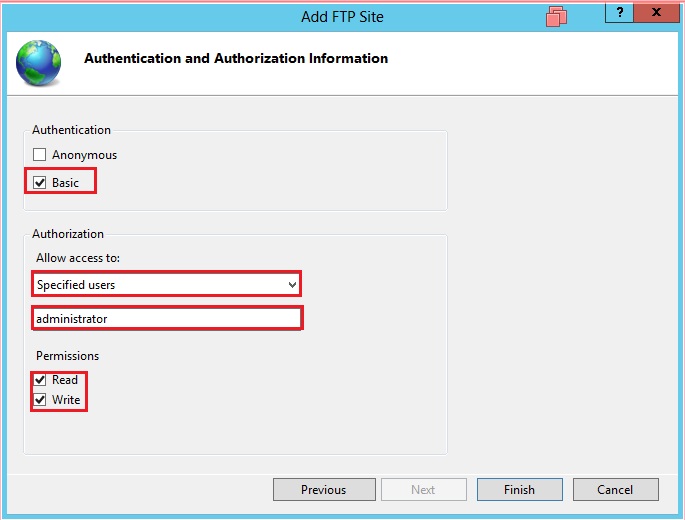
		<li>Tại <strong>Authentication</strong> chọn <strong>Bassic</strong>, tại <strong>Authorization</strong> chọn vào <strong>Specified users</strong> và nhập vào tên tài khoảng <strong>administrator</strong>, tại <strong>Permission</strong> chọn cả 2 <strong>Read</strong> và <strong>Write.</strong><br  />
		<a href="https://phanmemthienha.com/uploads/news/2018_12/151.jpg"><img alt="15" class="size-full wp-image-831 alignnone td-animation-stack-type0-2" height="520" sizes="(max-width: 685px) 100vw, 685px" src="https://phanmemthienha.com/uploads/news/2018_12/151.jpg" srcset="/uploads/news/2018_12/151.jpg 685w, /uploads/news/2018_12/151-300x228.jpg 300w, /uploads/news/2018_12/151-80x60.jpg 80w, /uploads/news/2018_12/151-553x420.jpg 553w" width="685" /></a></li>
		<li>Khi đã cấu hình xong quay lại với màn hình <strong>IIS manager</strong> các bạn chọn vào&nbsp;<strong>Authorization Rules&nbsp;</strong>sau đó Click phải vào khoảng trắng chọn <strong><strong>add allow rules</strong></strong>&nbsp;<a href="https://phanmemthienha.com/uploads/news/2018_12/161-e1447164544203.jpg"><img alt="16" class="size-full wp-image-832 aligncenter td-animation-stack-type0-2" height="387" src="https://phanmemthienha.com/uploads/news/2018_12/161-e1447164544203.jpg" width="760" /></a></li>
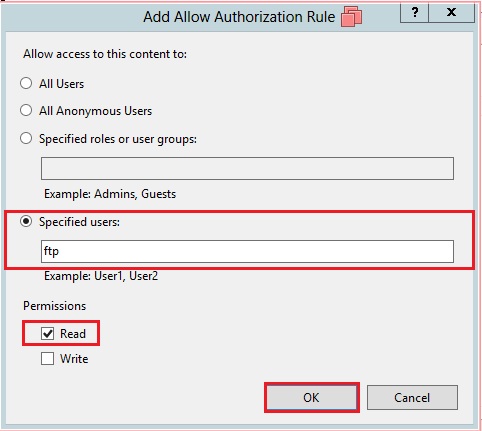
		<li>Tại đây các bạn chọn vào <strong>Specified users</strong> và nhập vào tên user là <strong>ftp</strong> lúc nãy vừa tạo vào chọn vào <strong>Read</strong><br  />
		<a href="https://phanmemthienha.com/uploads/news/2018_12/181.jpg"><img alt="18" class="size-full wp-image-833 aligncenter td-animation-stack-type0-2" height="431" sizes="(max-width: 482px) 100vw, 482px" src="https://phanmemthienha.com/uploads/news/2018_12/181.jpg" srcset="/uploads/news/2018_12/181.jpg 482w, /uploads/news/2018_12/181-300x268.jpg 300w, /uploads/news/2018_12/181-470x420.jpg 470w" width="482" /></a></li>
	</ul>
	</li>
</ul>
</div>

<ul>
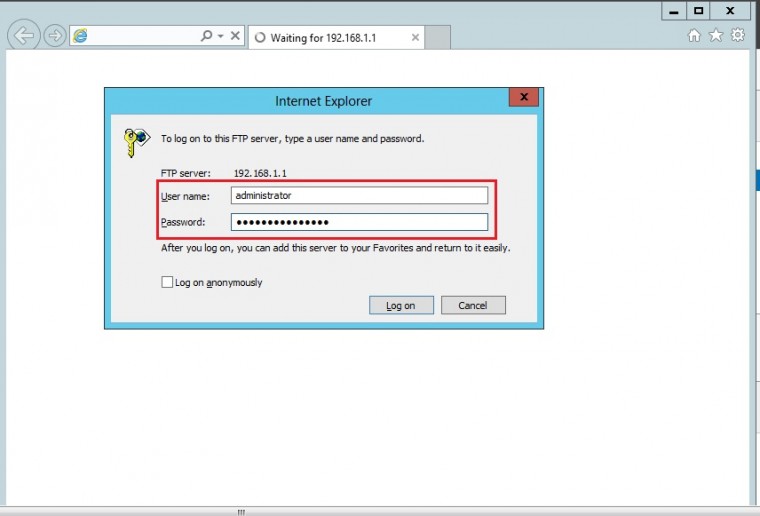
	<li>Đến đây là hoàn tất quá trình cài đặt. các bạn có thể mở máy Windows 8 lên để test hoặc có thể test trực tiếp trên máy server.</li>
</ul>

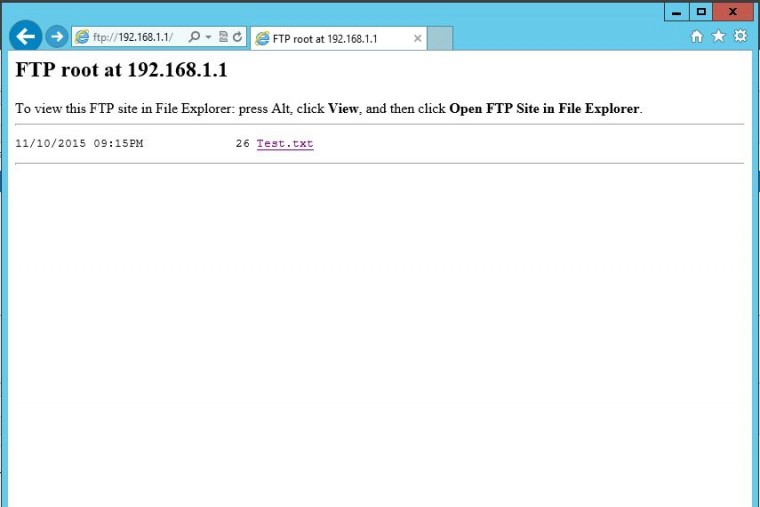
<p><em><span style="text-decoration: underline">LOGIN BẰNG TÀI KHOẢNG ADMINISTRATOR<br  />
<a href="https://phanmemthienha.com/uploads/news/2018_12/191-e1447165394160.jpg"><img alt="191 e1447165394160" class="size-full wp-image-834 aligncenter td-animation-stack-type0-2" height="516" src="https://phanmemthienha.com/uploads/news/2018_12/191-e1447165394160.jpg" width="760" /></a><a href="https://phanmemthienha.com/uploads/news/2018_12/20-e1447165418187.jpg"><img alt="20 e1447165418187" class="size-full wp-image-835 aligncenter td-animation-stack-type0-2" height="507" src="https://phanmemthienha.com/uploads/news/2018_12/20-e1447165418187.jpg" width="760" /></a></span></em><br  />
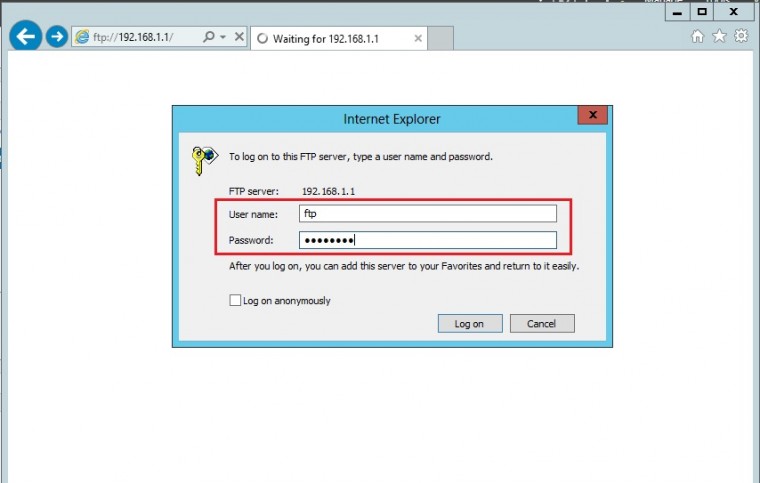
Vậy là đã thành công bây giờ thử logi bằng tài khoảng ftp</p>

<p><em><span style="text-decoration: underline">LOGIN BẰNG TÀI KHOẢNG ftp<br  />
<a href="https://phanmemthienha.com/uploads/news/2018_12/211-e1447165625913.jpg"><img alt="211 e1447165625913" class="size-full wp-image-837 aligncenter td-animation-stack-type0-2" height="483" src="https://phanmemthienha.com/uploads/news/2018_12/211-e1447165625913.jpg" width="760" /></a><a href="https://phanmemthienha.com/uploads/news/2018_12/221-e1447165669776.jpg"><img alt="221 e1447165669776" class="size-full wp-image-838 aligncenter td-animation-stack-type0-2" height="526" src="https://phanmemthienha.com/uploads/news/2018_12/221-e1447165669776.jpg" width="760" /></a></span></em></p>

<p><strong>LƯU Ý:</strong> <em>trong quá trình đăng nhập bằng tài khoảng ftp nếu không login được các bạn có thể viết đầy đủ username gồm user và domain để đăng nhập ( ví dụ ftp@adminvietnam.org )</em></p>

<p>Như vậy chúng ta đã cài đặt và cấu hình xong FTP trên Windows Server 2012, để có thể truy cập bằng tên miền các bạn chỉ cần tạo một Alias là có thể truy cập được</p>

<p><span style="text-decoration: underline">CÁCH TRUY CẬP BẰNG TÊN NHƯ SAU:</span></p>

<ul>
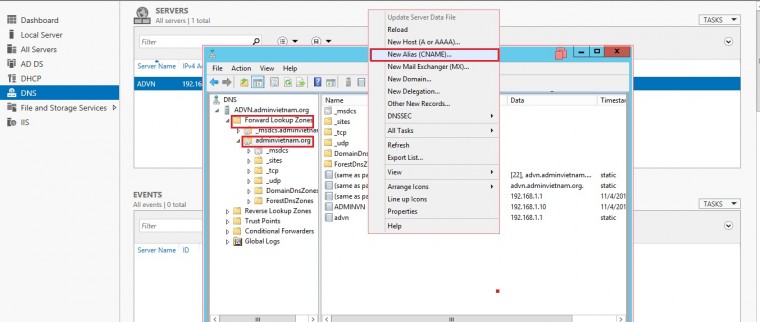
	<li>Vào <strong>DNS Manager</strong> tại <strong>forward lookup zone</strong> click phải chọn <strong>New Alias</strong><br  />
	<a href="https://phanmemthienha.com/uploads/news/2018_12/231-e1447166179720.jpg"><img alt="231 e1447166179720" class="size-full wp-image-839 aligncenter td-animation-stack-type0-2" height="322" src="https://phanmemthienha.com/uploads/news/2018_12/231-e1447166179720.jpg" width="760" /></a></li>
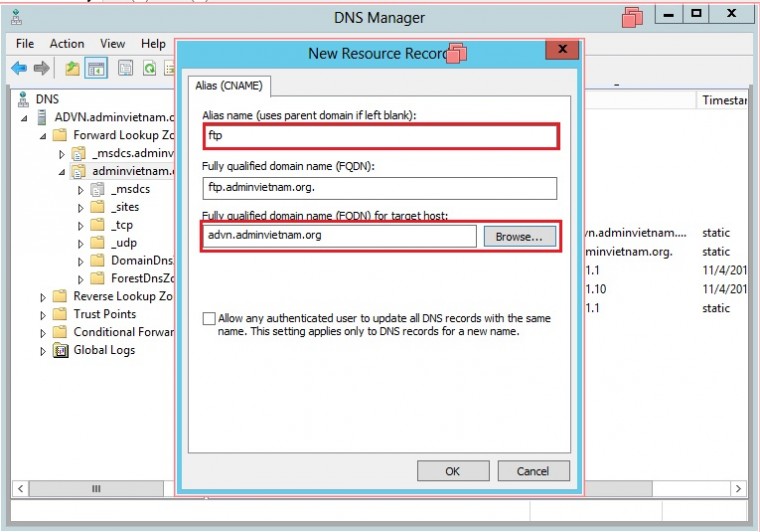
	<li>Tại New Resource Record nhập vào ftp sau đó click vào Browse… và chọn đến máy server. rồi Click vào Ok.<br  />
	<a href="https://phanmemthienha.com/uploads/news/2018_12/24-e1447166269788.jpg"><img alt="24 e1447166269788" class="size-full wp-image-840 aligncenter td-animation-stack-type0-2" height="532" src="https://phanmemthienha.com/uploads/news/2018_12/24-e1447166269788.jpg" width="760" /></a></li>
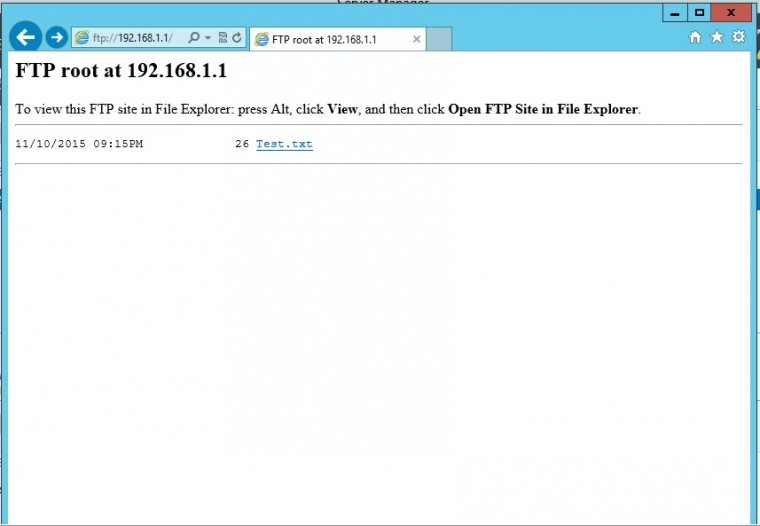
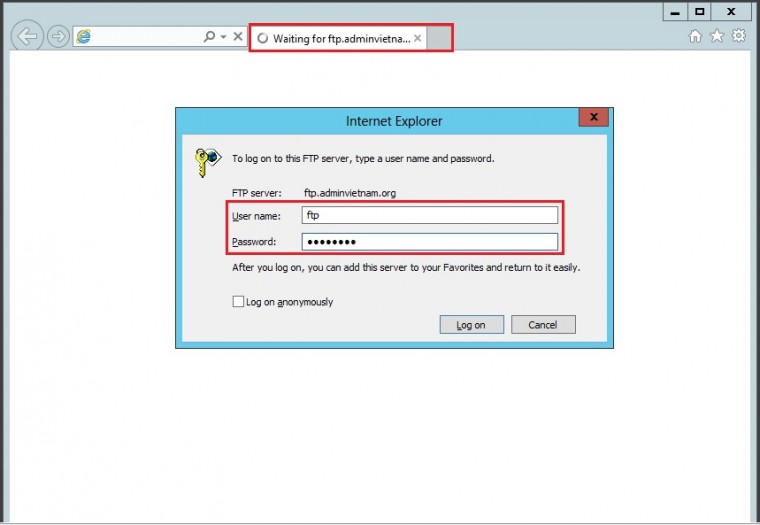
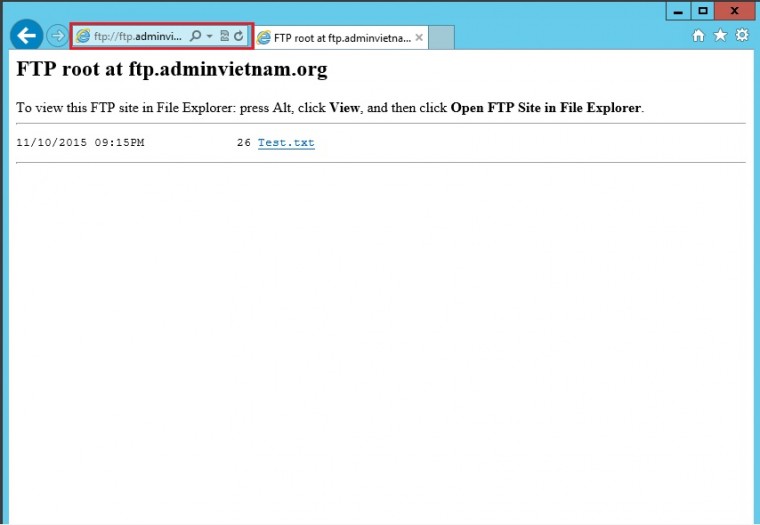
	<li>Bây giờ test truy cập bằng tên và xem kết quả.<br  />
	<a href="https://phanmemthienha.com/uploads/news/2018_12/25-e1447166612332.jpg"><img alt="25 e1447166612332" class="size-full wp-image-841 aligncenter td-animation-stack-type0-2" height="525" src="https://phanmemthienha.com/uploads/news/2018_12/25-e1447166612332.jpg" width="760" /></a><a href="https://phanmemthienha.com/uploads/news/2018_12/26-e1447166694487.jpg"><img alt="26 e1447166694487" class="size-full wp-image-842 aligncenter td-animation-stack-type0-2" height="525" src="https://phanmemthienha.com/uploads/news/2018_12/26-e1447166694487.jpg" width="760" /></a>Như vậy chúng ta đã truy cập tên miền thành công</li>
</ul>

<p>CHÚC CÁC BẠN THÀNH CÔNG !!!</p>
		</div>
	</div>
	<div id="footer" class="clearfix">
		<div id="url">
			<strong>URL của bản tin này: </strong><a href="https://phanmemthienha.com/news/huong-dan-phan-mem/cau-hinh-ftp-tren-windows-server-2012-93.html" title="Cấu Hình FTP Trên Windows Server 2012">https://phanmemthienha.com/news/huong-dan-phan-mem/cau-hinh-ftp-tren-windows-server-2012-93.html</a>

		</div>
		<div class="clear"></div>
		<div class="copyright">
			&copy; PHAN MEM THIEN HA
		</div>
		<div id="contact">
			<a href="mailto:phamhuy842005@gmail.com">phamhuy842005@gmail.com</a>
		</div>
	</div>
</div>
        <div id="timeoutsess" class="chromeframe">
            Bạn đã không sử dụng Site, <a onclick="timeoutsesscancel();" href="https://phanmemthienha.com/#">Bấm vào đây để duy trì trạng thái đăng nhập</a>. Thời gian chờ: <span id="secField"> 60 </span> giây
        </div>
        <div id="openidResult" class="nv-alert" style="display:none"></div>
        <div id="openidBt" data-result="" data-redirect=""></div>
<script src="https://phanmemthienha.com/assets/js/jquery/jquery.min.js"></script>
<script>var nv_base_siteurl="/",nv_lang_data="vi",nv_lang_interface="vi",nv_name_variable="nv",nv_fc_variable="op",nv_lang_variable="language",nv_module_name="news",nv_func_name="savefile",nv_is_user=0, nv_my_ofs=-4,nv_my_abbr="EDT",nv_cookie_prefix="nv4c_y8Y7D",nv_check_pass_mstime=1738000,nv_area_admin=0,nv_safemode=0,theme_responsive=1,nv_is_recaptcha=1,nv_recaptcha_sitekey="6LeSarIUAAAAAHRq6xkHwO6J0YYQOdMxgqKTXoL_",nv_recaptcha_type="image",nv_recaptcha_elements=[];</script>
<script src="https://phanmemthienha.com/assets/js/language/vi.js"></script>
<script src="https://phanmemthienha.com/assets/js/global.js"></script>
<script src="https://phanmemthienha.com/themes/default/js/news.js"></script>
<script src="https://phanmemthienha.com/themes/popovleather/js/main.js"></script>
<script src="https://phanmemthienha.com/themes/popovleather/js/bootstrap.min.js"></script>
</body>
</html>