<!DOCTYPE html>
	<html lang="vi" xmlns="http://www.w3.org/1999/xhtml" prefix="og: http://ogp.me/ns#">
	<head>
<title>Cách mở Internet Explorer trên Windows 11, tạo shortcut mở IE trên Win 11</title>
<meta name="description" content="Cách mở Internet Explorer trên Windows 11, tạo shortcut mở IE trên Win 11 - Savefile - Tin Tức -...">
<meta name="author" content="PHAN MEM THIEN HA">
<meta name="copyright" content="PHAN MEM THIEN HA [phamhuy842005@gmail.com]">
<meta name="robots" content="index, archive, follow, noodp">
<meta name="googlebot" content="index,archive,follow,noodp">
<meta name="msnbot" content="all,index,follow">
<meta name="generator" content="NukeViet v4.0">
<meta name="viewport" content="width=device-width, initial-scale=1">
<meta http-equiv="Content-Type" content="text/html; charset=utf-8">
<meta property="og:title" content="Cách mở Internet Explorer trên Windows 11, tạo shortcut mở IE trên Win 11">
<meta property="og:type" content="website">
<meta property="og:description" content="Savefile - Tin Tức - http&#x3A;&#x002F;&#x002F;phanmemthienha.com&#x002F;news&#x002F;savefile&#x002F;huong-dan-phan-mem&#x002F;cach-mo-internet-explorer-tren-windows-11-tao-shortcut-mo-ie-tren-win-11-206.html">
<meta property="og:site_name" content="PHAN MEM THIEN HA">
<meta property="og:url" content="http://phanmemthienha.com/news/huong-dan-phan-mem/cach-mo-internet-explorer-tren-windows-11-tao-shortcut-mo-ie-tren-win-11-206.html">
<link rel="shortcut icon" href="http://phanmemthienha.com/uploads/logo-shop-thien-ha-5.png">
<link rel="canonical" href="http://phanmemthienha.com/news/huong-dan-phan-mem/cach-mo-internet-explorer-tren-windows-11-tao-shortcut-mo-ie-tren-win-11-206.html">
<link rel="alternate" href="http://phanmemthienha.com/news/rss/" title="Tin Tức" type="application/rss+xml">
<link rel="alternate" href="http://phanmemthienha.com/news/rss/huong-dan-phan-mem/" title="Tin Tức - Hướng dẫn phần mềm" type="application/rss+xml">
<link rel="alternate" href="http://phanmemthienha.com/news/rss/huong-dan-noi-bo/" title="Tin Tức - Hướng dẫn nội bộ" type="application/rss+xml">
<link rel="alternate" href="http://phanmemthienha.com/news/rss/Doi-tac/" title="Tin Tức - Đối tác" type="application/rss+xml">
<link rel="alternate" href="http://phanmemthienha.com/news/rss/Tuyen-dung/" title="Tin Tức - Tuyển dụng" type="application/rss+xml">
<link rel="preload" as="script" href="http://phanmemthienha.com/assets/js/jquery/jquery.min.js">
<link rel="preload" as="script" href="http://phanmemthienha.com/assets/js/language/vi.js">
<link rel="preload" as="script" href="http://phanmemthienha.com/assets/js/global.js">
<link rel="preload" as="script" href="http://phanmemthienha.com/themes/default/js/news.js">
<link rel="preload" as="script" href="http://phanmemthienha.com/themes/popovleather/js/main.js">
<link rel="preload" as="script" href="http://phanmemthienha.com/themes/popovleather/js/bootstrap.min.js">
<link rel="StyleSheet" href="http://phanmemthienha.com/assets/css/font-awesome.min.css">
<link rel="StyleSheet" href="http://phanmemthienha.com/themes/popovleather/css/bootstrap.min.css">
<link rel="StyleSheet" href="http://phanmemthienha.com/themes/popovleather/css/style.css">
<link rel="StyleSheet" href="http://phanmemthienha.com/themes/popovleather/css/style.responsive.css">
<link rel="StyleSheet" href="http://phanmemthienha.com/themes/default/css/news.css">
<link rel="StyleSheet" href="http://phanmemthienha.com/assets/css/popovleather.vi.0.css?t=87">
<style>
	body{background: #fff;}
</style>
	</head>
	<body>
<div id="print">
	<div id="hd_print">
		<h2 class="pull-left">PHAN MEM THIEN HA</h2>
		<p class="pull-right"><a title="PHAN MEM THIEN HA" href="http://phanmemthienha.com/">http://phanmemthienha.com</a></p>
	</div>
	<div class="clear"></div>
	<hr />
	<div id="content">
		<h1>Cách mở Internet Explorer trên Windows 11, tạo shortcut mở IE trên Win 11</h1>
		<ul class="list-inline">
			<li>Thứ năm - 17/08/2023 11:04</li>
			<li class="hidden-print txtrequired"><em class="fa fa-print">&nbsp;</em><a title="In ra" href="javascript:;" onclick="window.print()">In ra</a></li>
			<li class="hidden-print txtrequired"><em class="fa fa-power-off">&nbsp;</em><a title="Đóng cửa sổ này" href="javascript:;" onclick="window.close()">Đóng cửa sổ này</a></li>
		</ul>
		<div class="clear"></div>
		<div id="hometext">
			Internet Explorer vừa bị khai tử trên hầu hết mọi phiên bản Windows dành cho người tiêu dùng từ ngày 15/6/2022. Thậm chí người dùng còn đánh dấu &quot;cái chết&quot; của Internet Explorer bằng các bia mộ ghi nhận nó là công cụ tốt để tải các trình duyệt khác.
		</div>
				<div class="imghome">
			<img alt="Cách mở Internet Explorer trên Windows 11, tạo shortcut mở IE trên Win 11" src="http://phanmemthienha.com/uploads/news/2023_08/image-20230817110520-1.jpeg" width="460" class="img-thumbnail" />
		</div>
		<div class="clear"></div>
		<div id="bodytext" class="clearfix">
			<span style="font-size:11pt"><span style="background:white"><span style="line-height:normal"><span style="font-family:Calibri,sans-serif"><span style="font-size:14.0pt"><span style="font-family:&#039;Times New Roman&#039;,serif"><span style="color:rgb(51, 51, 51);">Bạn nghĩ Internet Explorer bị xóa hoàn toàn khỏi&nbsp;</span></span></span><u><span style="font-size:14.0pt"><span style="font-family:&#039;Times New Roman&#039;,serif"><span style="color:rgb(75, 169, 80);">Windows 11</span></span></span></u><span style="font-size:14.0pt"><span style="font-family:&#039;Times New Roman&#039;,serif"><span style="color:rgb(51, 51, 51);">&nbsp;rồi ư? Chưa đâu!</span></span></span></span></span></span></span><br  />
<span style="font-size:11pt"><span style="background:white"><span style="line-height:normal"><span style="font-family:Calibri,sans-serif"><span style="font-size:14.0pt"><span style="font-family:&#039;Times New Roman&#039;,serif"><span style="color:rgb(51, 51, 51);">Mặc dù Windows 11 không được cài sẵn Internet Explorer nhưng trình duyệt này vẫn có thể chạy được trên hệ điều hành Windows mới nhất của Microsoft. Cách chạy Internet Explorer trên Windows 11 được khám phá ra bởi người dùng Twitter @XenoPanter và được quảng bá rộng rãi bởi biên tập viên Tom Warren của trang tin The Verge.</span></span></span></span></span></span></span><br  />
<span style="font-size:11pt"><span style="background:white"><span style="line-height:normal"><span style="font-family:Calibri,sans-serif"><b><span style="font-size:14.0pt"><span style="font-family:&#039;Times New Roman&#039;,serif"><span style="color:rgb(51, 51, 51);">Cách chạy Internet Explorer trên Windows 11</span></span></span></b><br  />
<span style="font-size:14.0pt"><span style="font-family:&#039;Times New Roman&#039;,serif"><span style="color:rgb(51, 51, 51);">Nếu bạn muốn chạy Internet Explorer trên Windows 11 cho một mục đích nào đó thì đây là các bước bạn cần thực hiện:</span></span></span></span></span></span></span><br  />
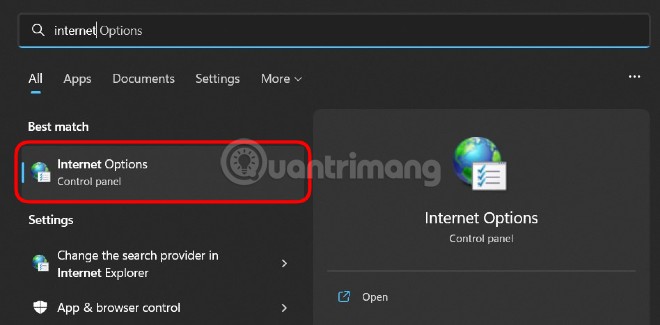
<span style="font-size:11pt"><span style="background:white"><span style="line-height:normal"><span style="font-family:Calibri,sans-serif"><span style="font-size:14.0pt"><span style="font-family:&#039;Times New Roman&#039;,serif"><span style="color:rgb(51, 51, 51);">Nhấn nút&nbsp;<b>Start</b>&nbsp;hoặc nhấn phím&nbsp;<b>Win</b>&nbsp;trên bàn phím để mở&nbsp;<b>Start Menu.</b></span></span></span><br  />
<span style="font-size:14.0pt"><span style="font-family:&#039;Times New Roman&#039;,serif"><span style="color:rgb(51, 51, 51);">Nhập&nbsp;<b>Internet Options</b>&nbsp;sau đó mở phần cài đặt<b>&nbsp;Internet Options</b>&nbsp;xuất hiện trong kết quả tìm kiếm.</span></span></span></span></span></span></span><br  />
<br  />
<img alt="" height="325" src="http://phanmemthienha.com/uploads/news/2023_08/image-20230817110520-1.jpeg" width="660" /><br  />
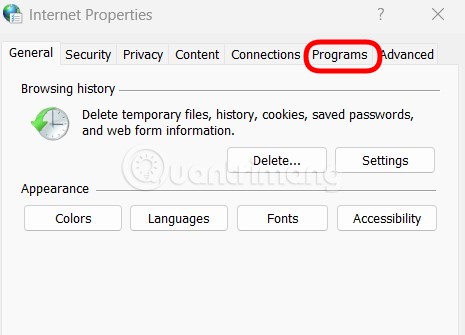
<span style="font-size:11pt"><span style="background:white"><span style="line-height:normal"><span style="font-family:Calibri,sans-serif"><span style="font-size:14.0pt"><span style="font-family:&#039;Times New Roman&#039;,serif"><span style="color:rgb(51, 51, 51);">Nhấp vào thẻ&nbsp;<b>Programs.</b></span></span></span></span></span></span></span><br  />
<img alt="" height="335" src="http://phanmemthienha.com/uploads/news/2023_08/image-20230817110520-2.jpeg" width="465" /><br  />
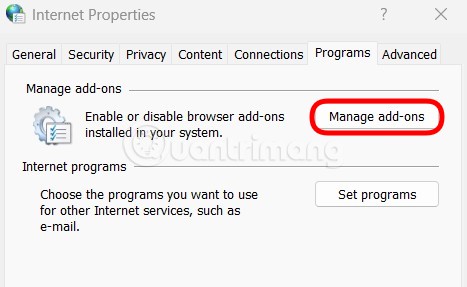
<span style="font-size:11pt"><span style="background:white"><span style="line-height:normal"><span style="font-family:Calibri,sans-serif"><span style="font-size:14.0pt"><span style="font-family:&#039;Times New Roman&#039;,serif"><span style="color:rgb(51, 51, 51);">Nhấn vào nút&nbsp;<b>Manage add-on.</b></span></span></span></span></span></span></span><br  />
<img alt="" height="287" src="http://phanmemthienha.com/uploads/news/2023_08/image-20230817110520-3.jpeg" width="467" /><br  />
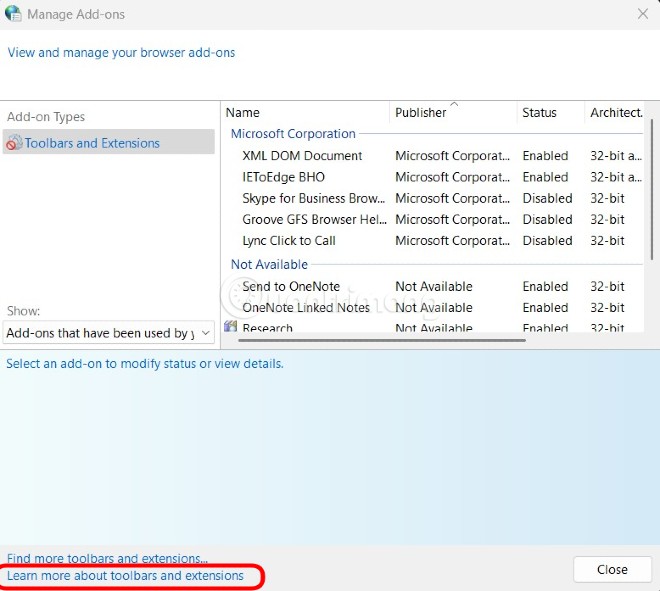
<span style="font-size:11pt"><span style="background:white"><span style="line-height:normal"><span style="font-family:Calibri,sans-serif"><span style="font-size:14.0pt"><span style="font-family:&#039;Times New Roman&#039;,serif"><span style="color:rgb(51, 51, 51);">Nhấn vào dòng chữ<b>&nbsp;Learn more about toolbars and extensions</b>&nbsp;ở góc dưới bên trái của cửa sổ.</span></span></span></span></span></span></span><br  />
<img alt="" height="591" src="http://phanmemthienha.com/uploads/news/2023_08/image-20230817110520-4.jpeg" width="660" /><br  />
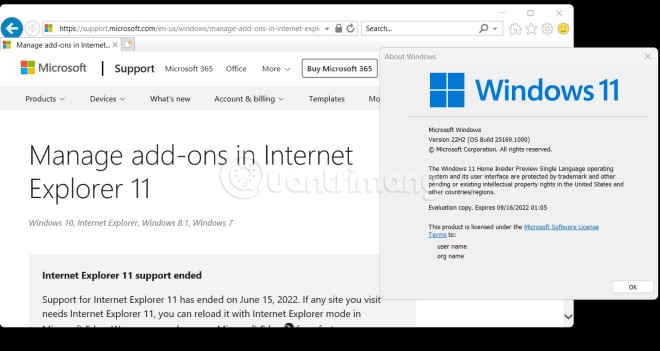
<span style="font-size:11pt"><span style="background:white"><span style="line-height:normal"><span style="font-family:Calibri,sans-serif"><span style="font-size:14.0pt"><span style="font-family:&#039;Times New Roman&#039;,serif"><span style="color:rgb(51, 51, 51);">Và đây rồi, Internet Explorer xuất hiện trở lại trên Windows 11. Sau khi mở được Internet Explorer bạn có thể nhấp địa chỉ trang web bạn muốn truy cập vào thanh tìm kiếm.</span></span></span></span></span></span></span><br  />
<img alt="" height="351" src="http://phanmemthienha.com/uploads/news/2023_08/image-20230817110520-5.jpeg" width="660" /><br  />
<span style="font-size:11pt"><span style="background:white"><span style="line-height:normal"><span style="font-family:Calibri,sans-serif"><b><span style="font-size:14.0pt"><span style="font-family:&#039;Times New Roman&#039;,serif"><span style="color:rgb(51, 51, 51);">Cách tạo shortcut Internet Explorer trên Windows 11</span></span></span></b><br  />
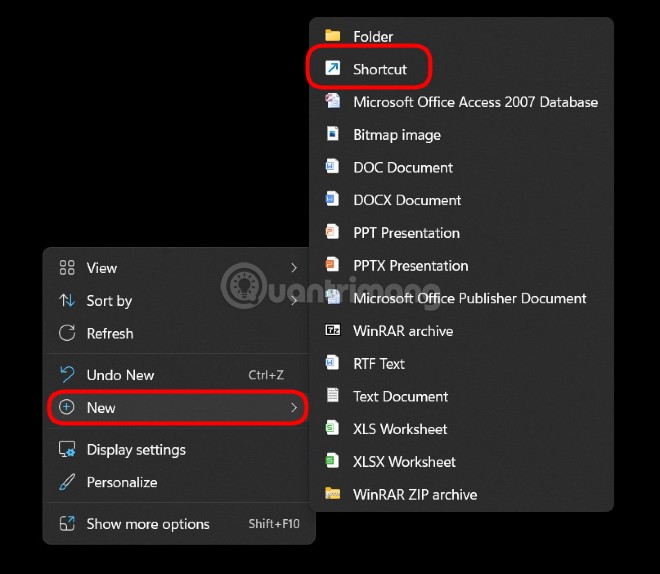
<span style="font-size:14.0pt"><span style="font-family:&#039;Times New Roman&#039;,serif"><span style="color:rgb(51, 51, 51);">Để mở nhanh Internet Explorer trên Windows 11 các bạn có thể tạo ra một shortcut tùy chỉnh. Các bước tạo shortcut như sau:</span></span></span></span></span></span></span><br  />
<span style="font-size:11pt"><span style="background:white"><span style="line-height:normal"><span style="font-family:Calibri,sans-serif"><span style="font-size:14.0pt"><span style="font-family:&#039;Times New Roman&#039;,serif"><span style="color:rgb(51, 51, 51);">Nhấn chuột phải vào màn hình sau đó chọn<b>&nbsp;New &gt; Shortcut.</b></span></span></span></span></span></span></span><br  />
<img alt="" height="574" src="http://phanmemthienha.com/uploads/news/2023_08/image-20230817110520-6.jpeg" width="660" /><br  />
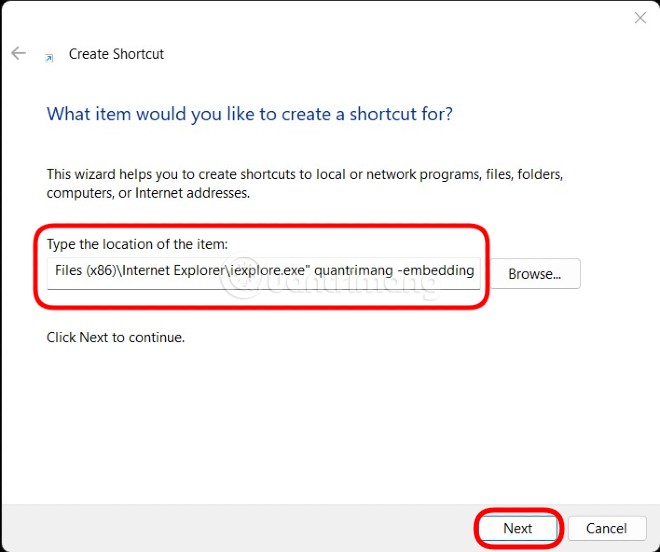
<span style="font-size:11pt"><span style="background:white"><span style="line-height:normal"><span style="font-family:Calibri,sans-serif"><span style="font-size:14.0pt"><span style="font-family:&#039;Times New Roman&#039;,serif"><span style="color:rgb(51, 51, 51);">Điền:&nbsp;<b>&quot;C:\Program Files (x86)\Internet Explorer\iexplore.exe&quot; quantrimang -embedding</b>&nbsp;vào ô trống sau đó nhấn&nbsp;<b>Next.</b></span></span></span></span></span></span></span><br  />
<img alt="" height="552" src="http://phanmemthienha.com/uploads/news/2023_08/image-20230817110520-7.jpeg" width="660" /><br  />
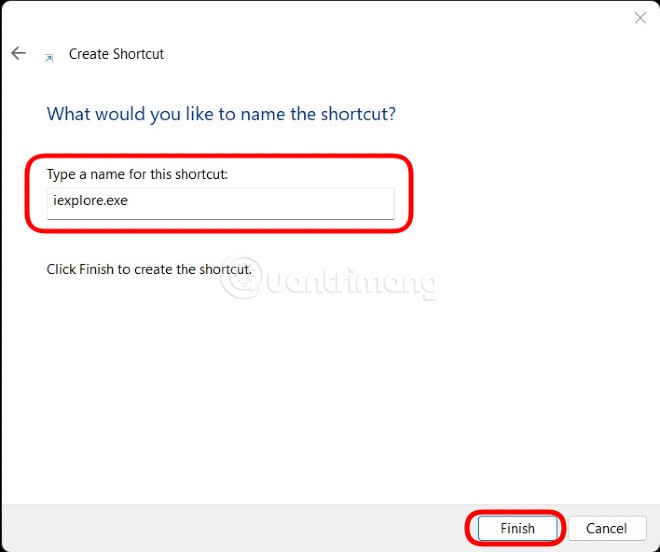
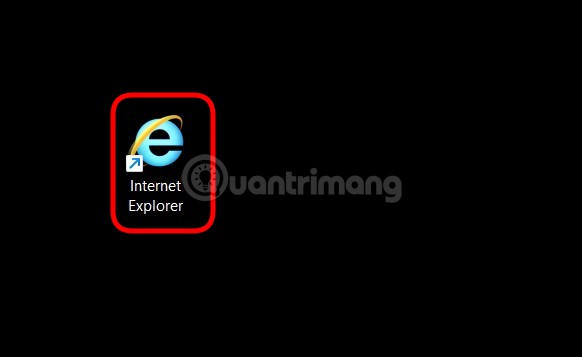
<span style="font-size:11pt"><span style="background:white"><span style="line-height:normal"><span style="font-family:Calibri,sans-serif"><span style="font-size:14.0pt"><span style="font-family:&#039;Times New Roman&#039;,serif"><span style="color:rgb(51, 51, 51);">Đặt tên cho shortcut là&nbsp;<b>Internet Explorer</b>&nbsp;hoặc bất cứ thứ gì bạn muốn.</span></span></span><br  />
<span style="font-size:14.0pt"><span style="font-family:&#039;Times New Roman&#039;,serif"><span style="color:rgb(51, 51, 51);">Nhấn&nbsp;<b>Finish</b>&nbsp;để hoàn tất.</span></span></span></span></span></span></span><br  />
<img alt="" height="552" src="http://phanmemthienha.com/uploads/news/2023_08/image-20230817110520-8.jpeg" width="660" /><br  />
<span style="font-size:11pt"><span style="background:white"><span style="line-height:normal"><span style="font-family:Calibri,sans-serif"><span style="font-size:14.0pt"><span style="font-family:&#039;Times New Roman&#039;,serif"><span style="color:rgb(51, 51, 51);">Khi bạn chạy shortcut, bạn sẽ truy cập vào Internet Explorer đang hiển thị trang tìm kiếm Bing cho cụm từ phía trước&nbsp;<b>-embedding.</b></span></span></span></span></span></span></span><br  />
<img alt="" height="357" src="http://phanmemthienha.com/uploads/news/2023_08/image-20230817110520-9.jpeg" width="582" /><br  />
<br  />
<span style="font-size:11pt"><span style="background:white"><span style="line-height:normal"><span style="font-family:Calibri,sans-serif"><b><span style="font-size:14.0pt"><span style="font-family:&#039;Times New Roman&#039;,serif"><span style="color:rgb(51, 51, 51);">Lưu ý:</span></span></span></b><span style="font-size:14.0pt"><span style="font-family:&#039;Times New Roman&#039;,serif"><span style="color:rgb(51, 51, 51);">&nbsp;Bạn có thể thay từ quantrimang phía trước -embedding bằng bất cứ cụm từ nào bạn thích. Phương thức này giúp bạn mở Internet Explorer trên Windows 11 nhanh chóng hơn. Sau khi mở xong bạn có thể điền địa chỉ trang web bạn muốn truy cập vào thanh địa chỉ để sử dụng bình thường.</span></span></span></span></span></span></span><br  />
<span style="font-size:11pt"><span style="background:white"><span style="line-height:normal"><span style="font-family:Calibri,sans-serif"><span style="font-size:14.0pt"><span style="font-family:&#039;Times New Roman&#039;,serif"><span style="color:rgb(51, 51, 51);">Ở thời điểm Quản Trị Mạng viết bài này (ngày 04/8/2022), phương pháp mở Interner Explorer này hoạt động trên tất cả phiên bản Windows 11 kể cả các bản thử nghiệm Insider. Quản Trị Mạng đã thử nghiệm thành công phương pháp này trên Windows 11 bản Dev Version 22H2 Build 25169.1000. Đương nhiên là trên Windows 10 phương pháp này cũng có thể thực hiện thành công.</span></span></span></span></span></span></span><br  />
<span style="font-size:11pt"><span style="background:white"><span style="line-height:normal"><span style="font-family:Calibri,sans-serif"><span style="font-size:14.0pt"><span style="font-family:&#039;Times New Roman&#039;,serif"><span style="color:rgb(51, 51, 51);">Đây rõ ràng là một hành vi ngoài ý muốn và có khả năng là một đoạn code kế thừa mà Microsoft đã sử dụng lại nhưng quên chỉnh sửa trình duyệt mặc định. Bây giờ sau khi nó được phổ biến, công ty có trụ sở tại Redmond có sẽ sẽ sớm khắc phục.</span></span></span></span></span></span></span><br  />
<span style="font-size:14.0pt"><span style="line-height:107%"><span style="font-family:&#039;Times New Roman&#039;,serif"><span style="color:rgb(51, 51, 51);">Trong trường hợp Microsoft khóa phương pháp này lại thì các bạn hãy dùng IE Mode trên Microsoft Edge nếu cần truy cập các trang web chỉ tương thích với Internet Explorer.</span></span></span></span>
		</div>
	</div>
	<div id="footer" class="clearfix">
		<div id="url">
			<strong>URL của bản tin này: </strong><a href="http://phanmemthienha.com/news/huong-dan-phan-mem/cach-mo-internet-explorer-tren-windows-11-tao-shortcut-mo-ie-tren-win-11-206.html" title="Cách mở Internet Explorer trên Windows 11, tạo shortcut mở IE trên Win 11">http://phanmemthienha.com/news/huong-dan-phan-mem/cach-mo-internet-explorer-tren-windows-11-tao-shortcut-mo-ie-tren-win-11-206.html</a>

		</div>
		<div class="clear"></div>
		<div class="copyright">
			&copy; PHAN MEM THIEN HA
		</div>
		<div id="contact">
			<a href="mailto:phamhuy842005@gmail.com">phamhuy842005@gmail.com</a>
		</div>
	</div>
</div>
        <div id="timeoutsess" class="chromeframe">
            Bạn đã không sử dụng Site, <a onclick="timeoutsesscancel();" href="http://phanmemthienha.com/#">Bấm vào đây để duy trì trạng thái đăng nhập</a>. Thời gian chờ: <span id="secField"> 60 </span> giây
        </div>
        <div id="openidResult" class="nv-alert" style="display:none"></div>
        <div id="openidBt" data-result="" data-redirect=""></div>
<script src="http://phanmemthienha.com/assets/js/jquery/jquery.min.js"></script>
<script>var nv_base_siteurl="/",nv_lang_data="vi",nv_lang_interface="vi",nv_name_variable="nv",nv_fc_variable="op",nv_lang_variable="language",nv_module_name="news",nv_func_name="savefile",nv_is_user=0, nv_my_ofs=7,nv_my_abbr="ICT",nv_cookie_prefix="nv4c_y8Y7D",nv_check_pass_mstime=1738000,nv_area_admin=0,nv_safemode=0,theme_responsive=1,nv_is_recaptcha=1,nv_recaptcha_sitekey="6LeSarIUAAAAAHRq6xkHwO6J0YYQOdMxgqKTXoL_",nv_recaptcha_type="image",nv_recaptcha_elements=[];</script>
<script src="http://phanmemthienha.com/assets/js/language/vi.js"></script>
<script src="http://phanmemthienha.com/assets/js/global.js"></script>
<script src="http://phanmemthienha.com/themes/default/js/news.js"></script>
<script src="http://phanmemthienha.com/themes/popovleather/js/main.js"></script>
<script src="http://phanmemthienha.com/themes/popovleather/js/bootstrap.min.js"></script>
</body>
</html>